I use S3PE to look at .package files and then rename them in File Explorer.
If you don't have S3PE, you can download the file (s3pe_14-0222-1852.exe: Windows Easy Installer version) With the link below.
S3PE -
http://www.simlogical.com/s3pe.htm✽ Click on images to see larger view.
~ How To: Look at Library and CC Files via S3PE 1. Double-click on the S3pe shortcut.
2. File > Open - Browse to where your .package files are.
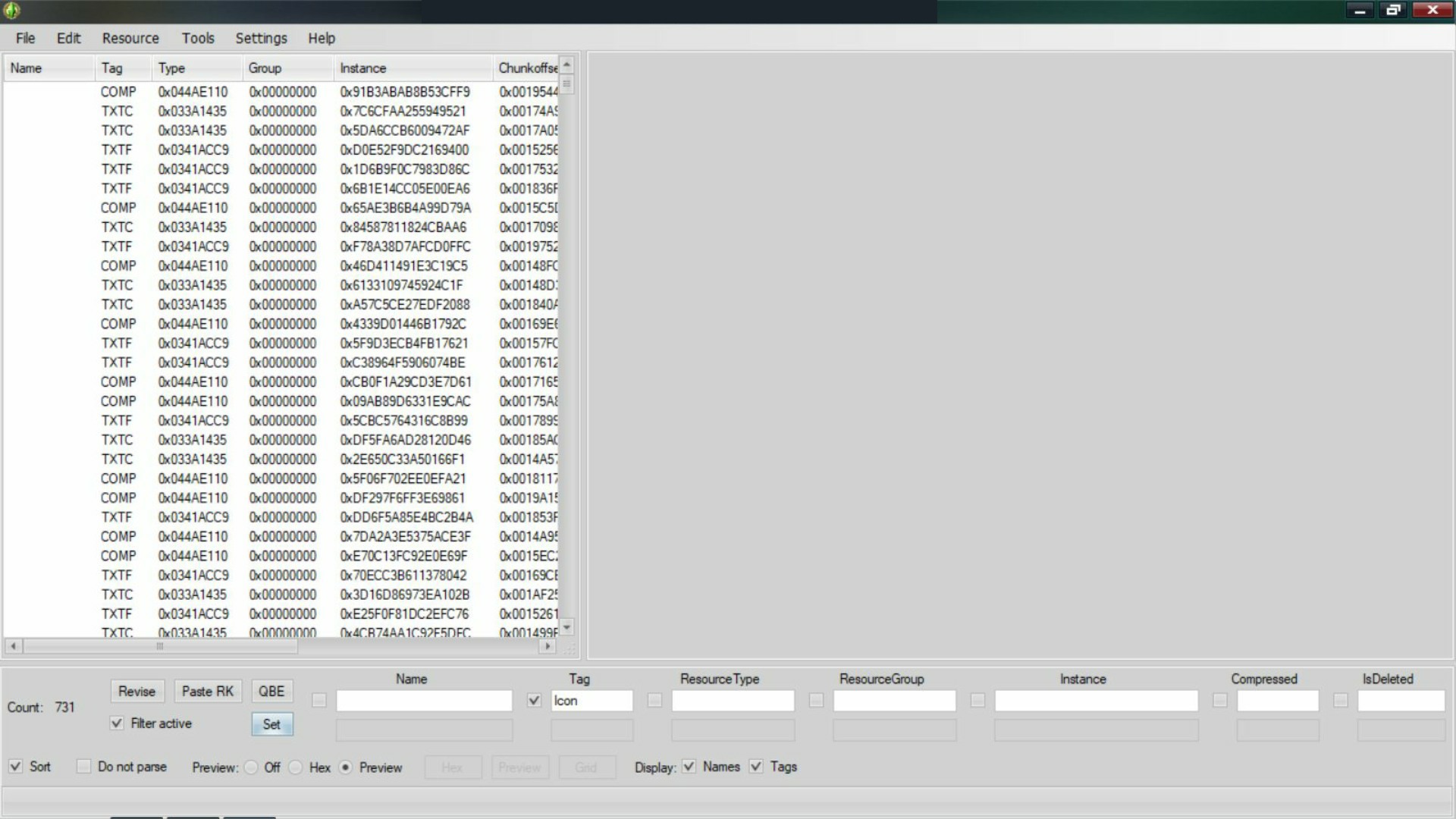
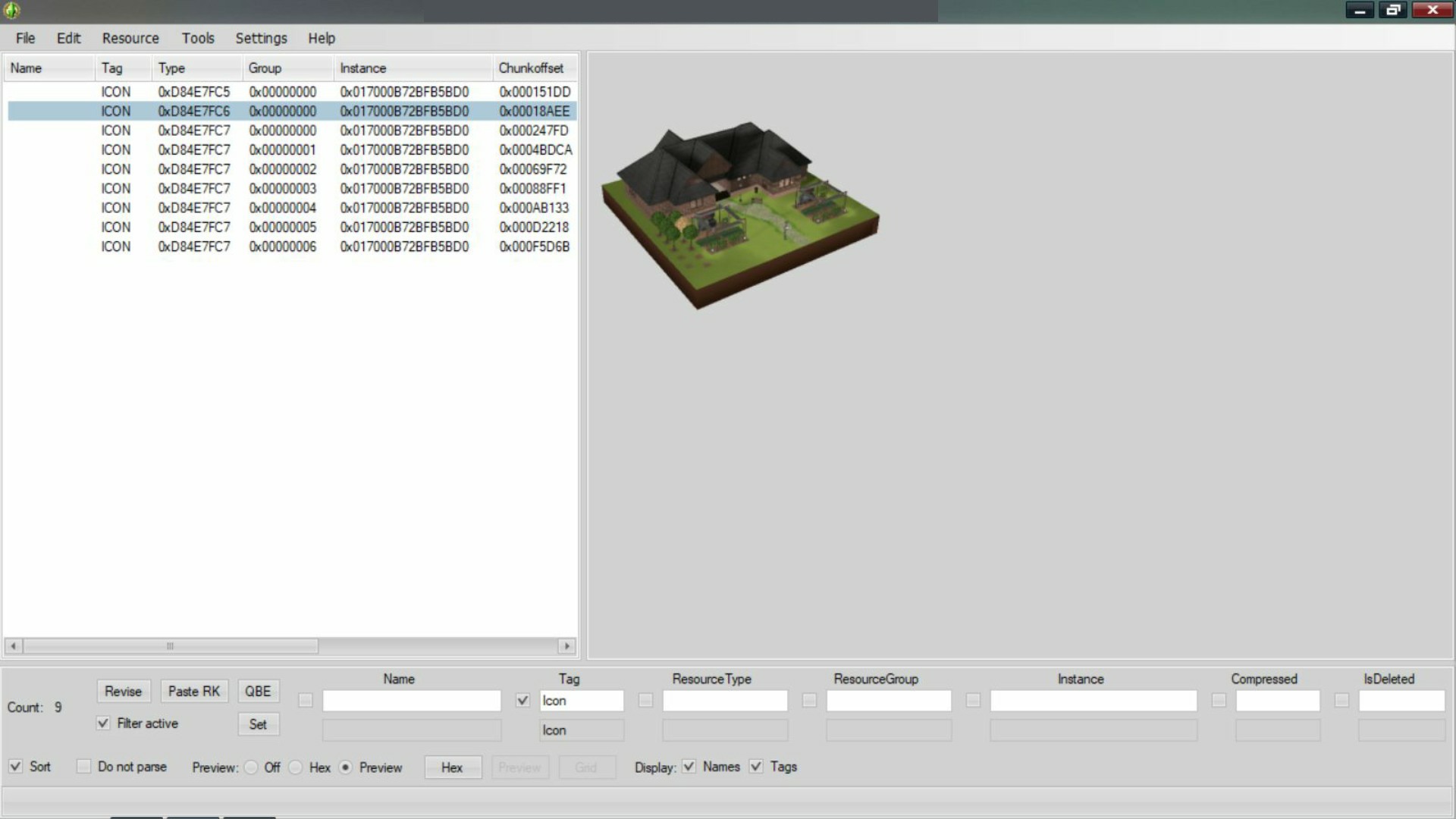
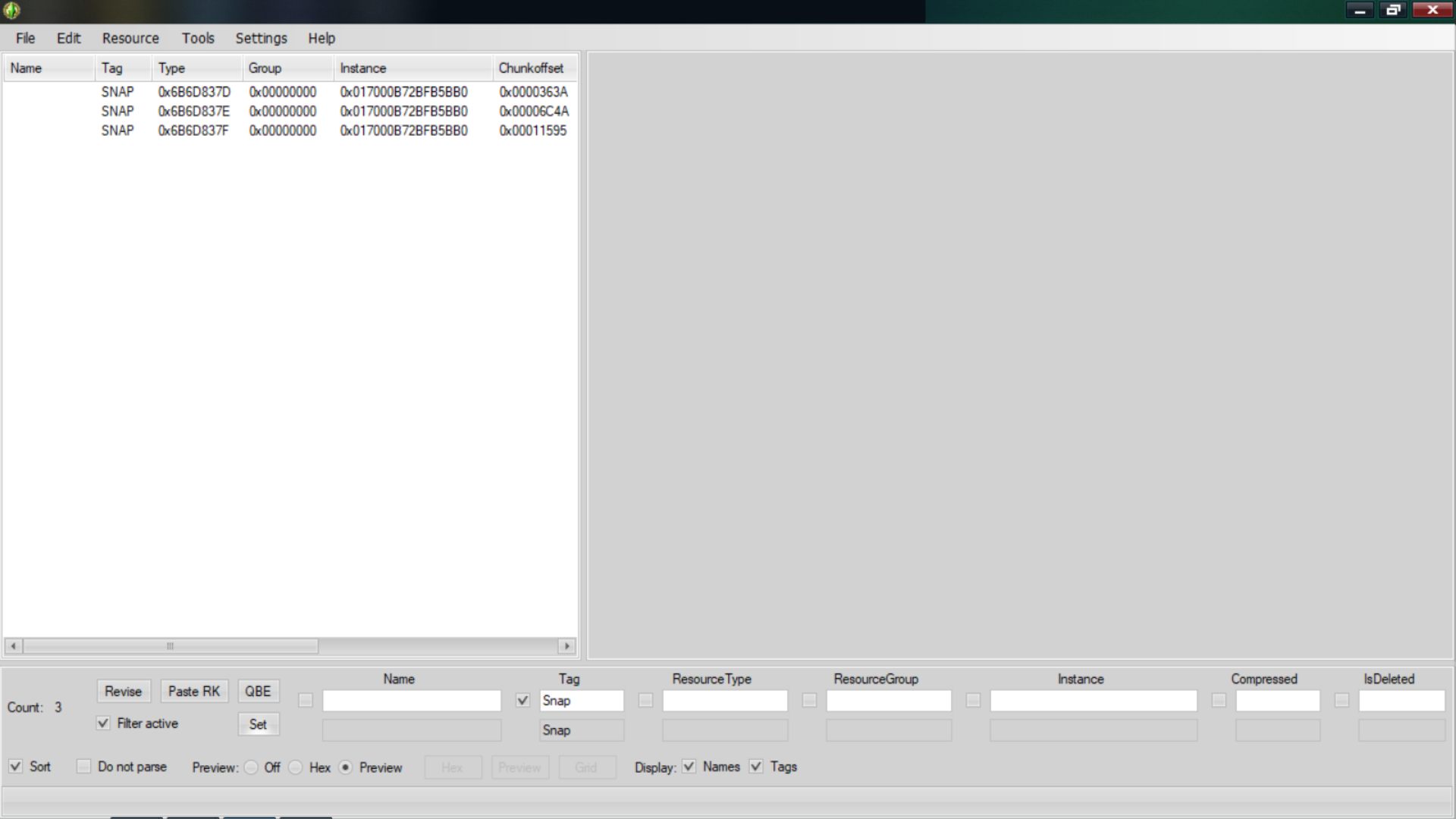
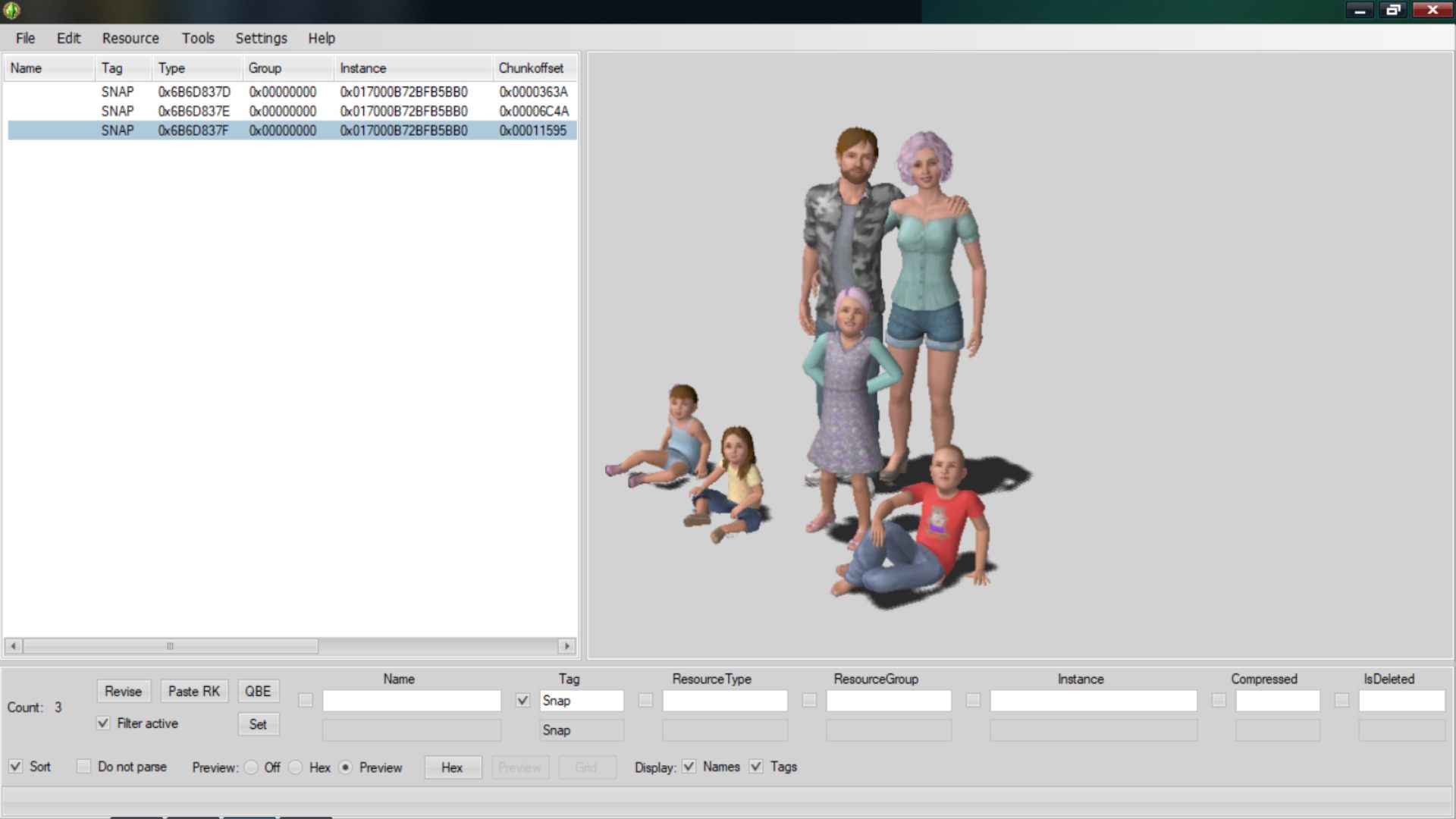
3. Search by Tag: Checkmark the word Tag and type one of the tags below. Checkmark Filter Active and click the Set button. This will show the tagged thumbnails you're looking for. I have added the image below to help show where the tag box is. As I feel in a full-view photo it isn't as noticeable.

– Icon Tag: (Lot Files)

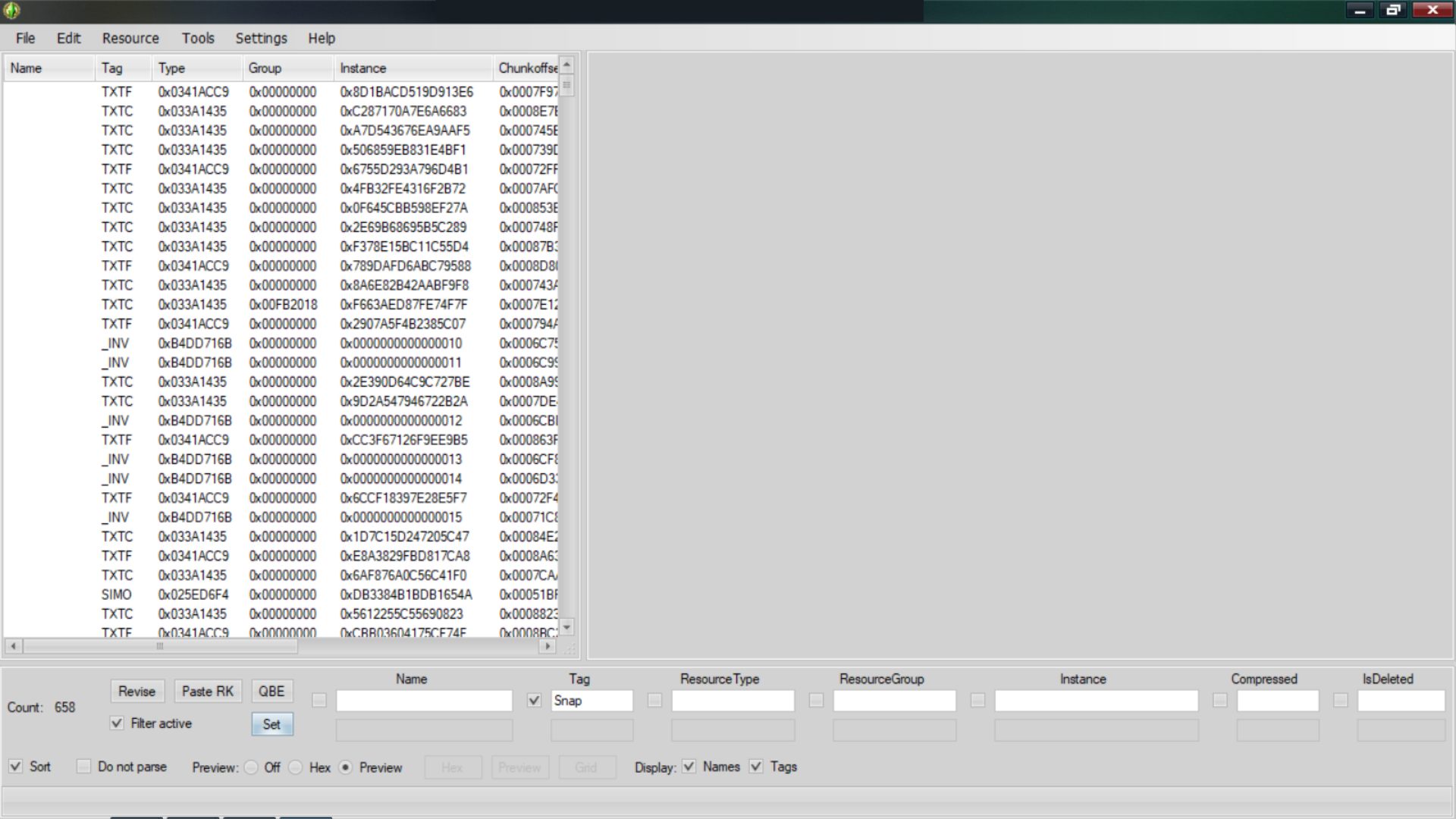
– Snap Tag: (Family or Single Sim Files)
– Thum Tag: (Some CC Files)
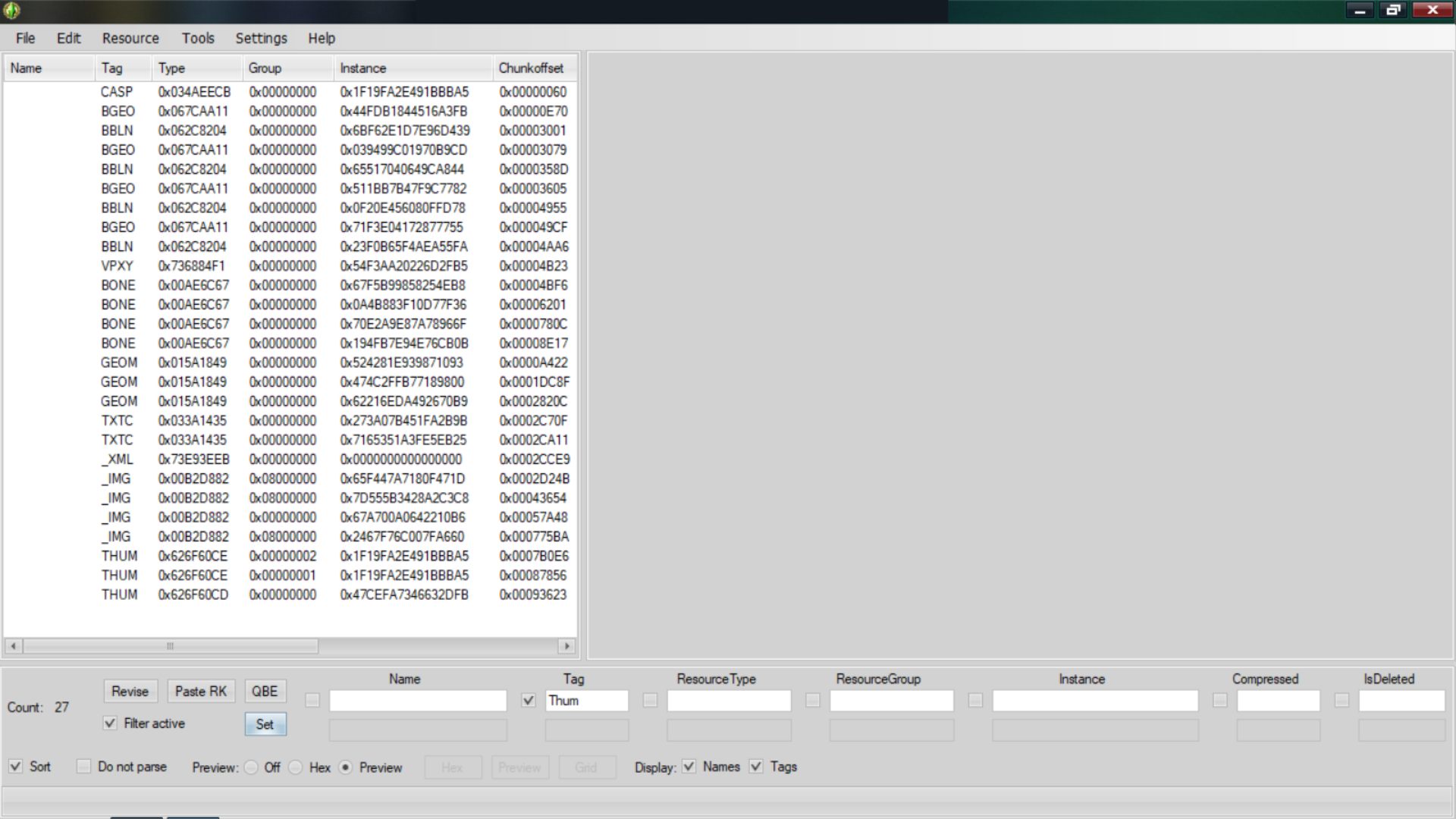
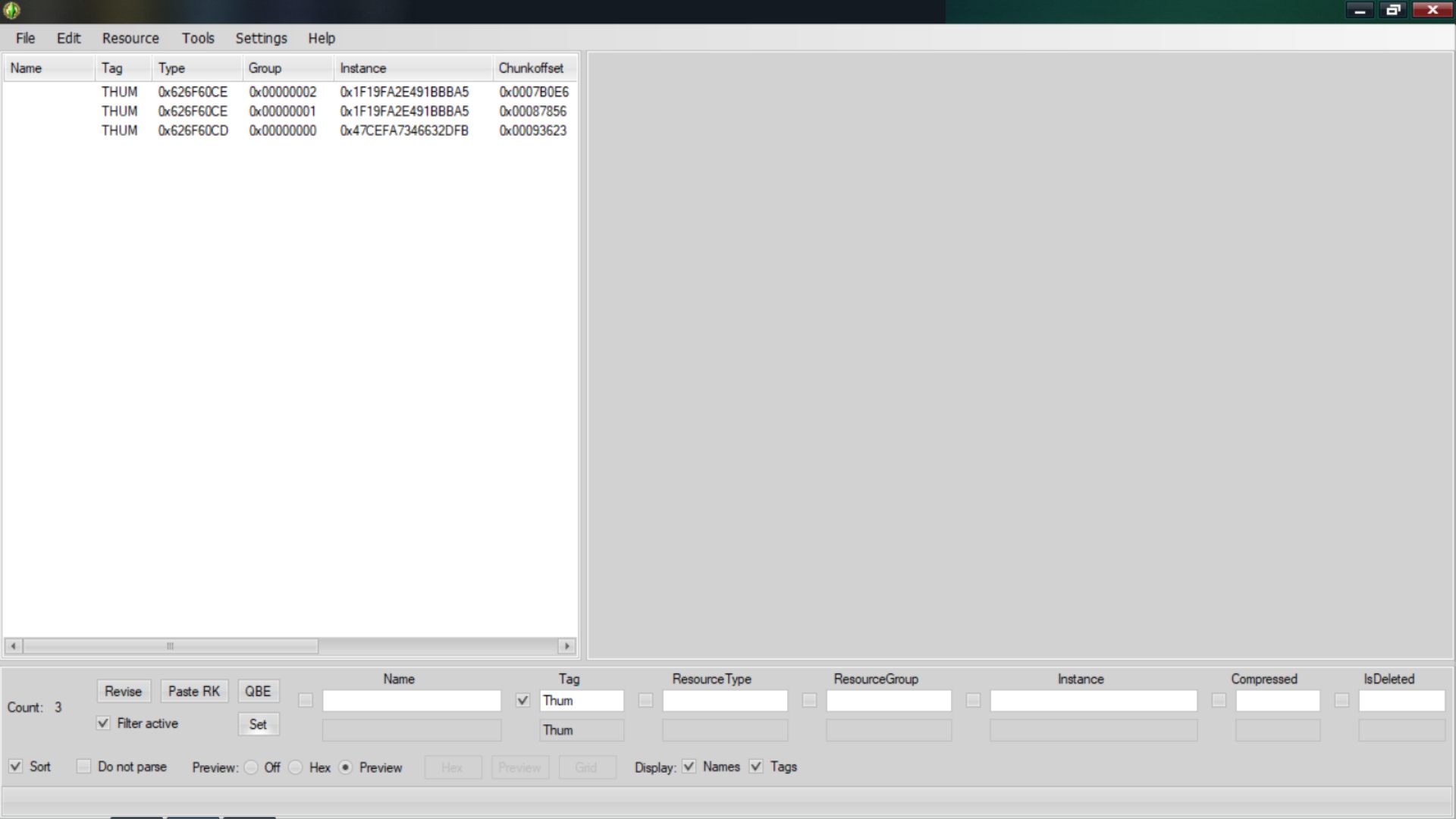
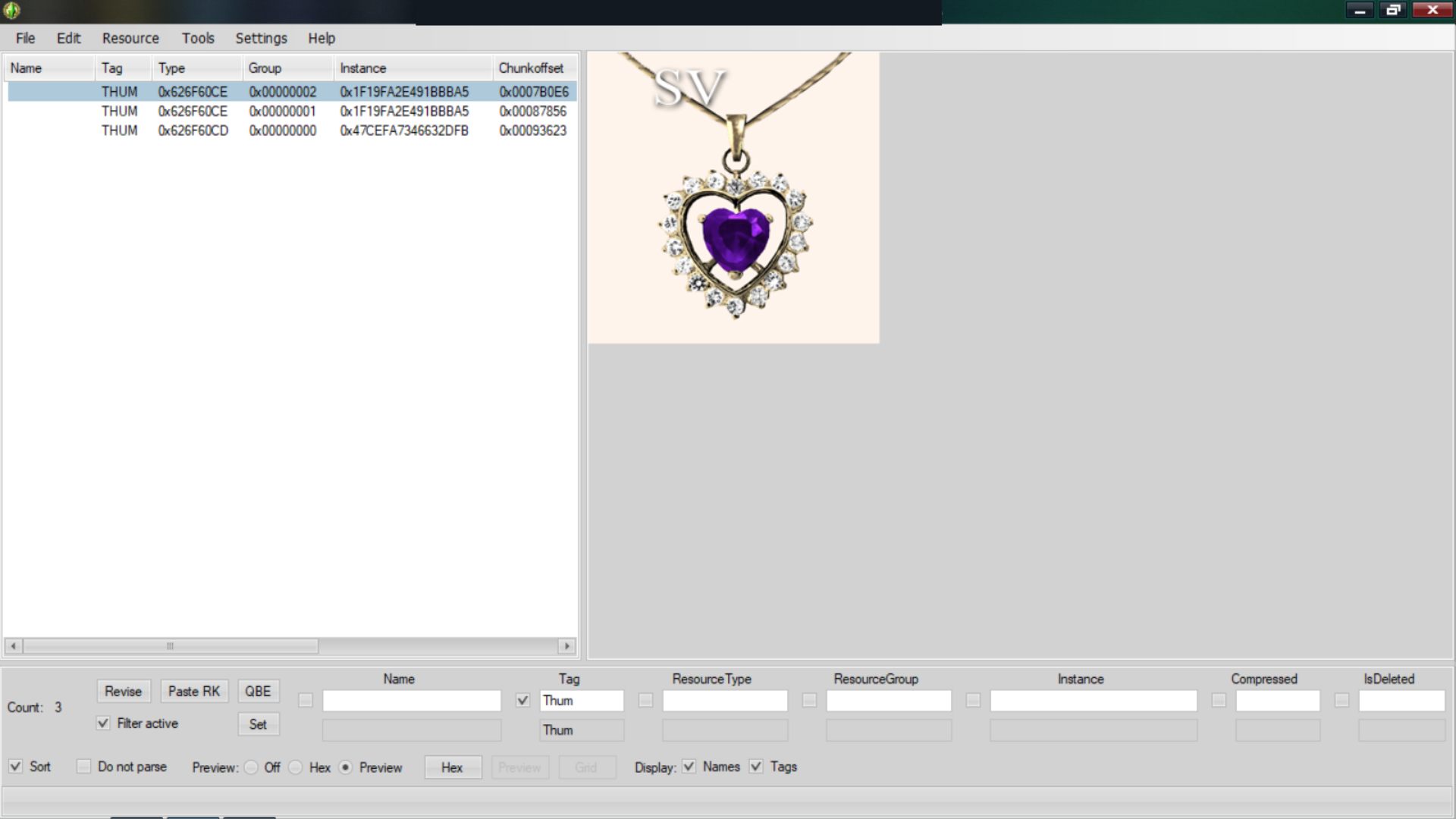
Clear both the Filter Active and Tag boxes to get back to the full file list for the specific file.
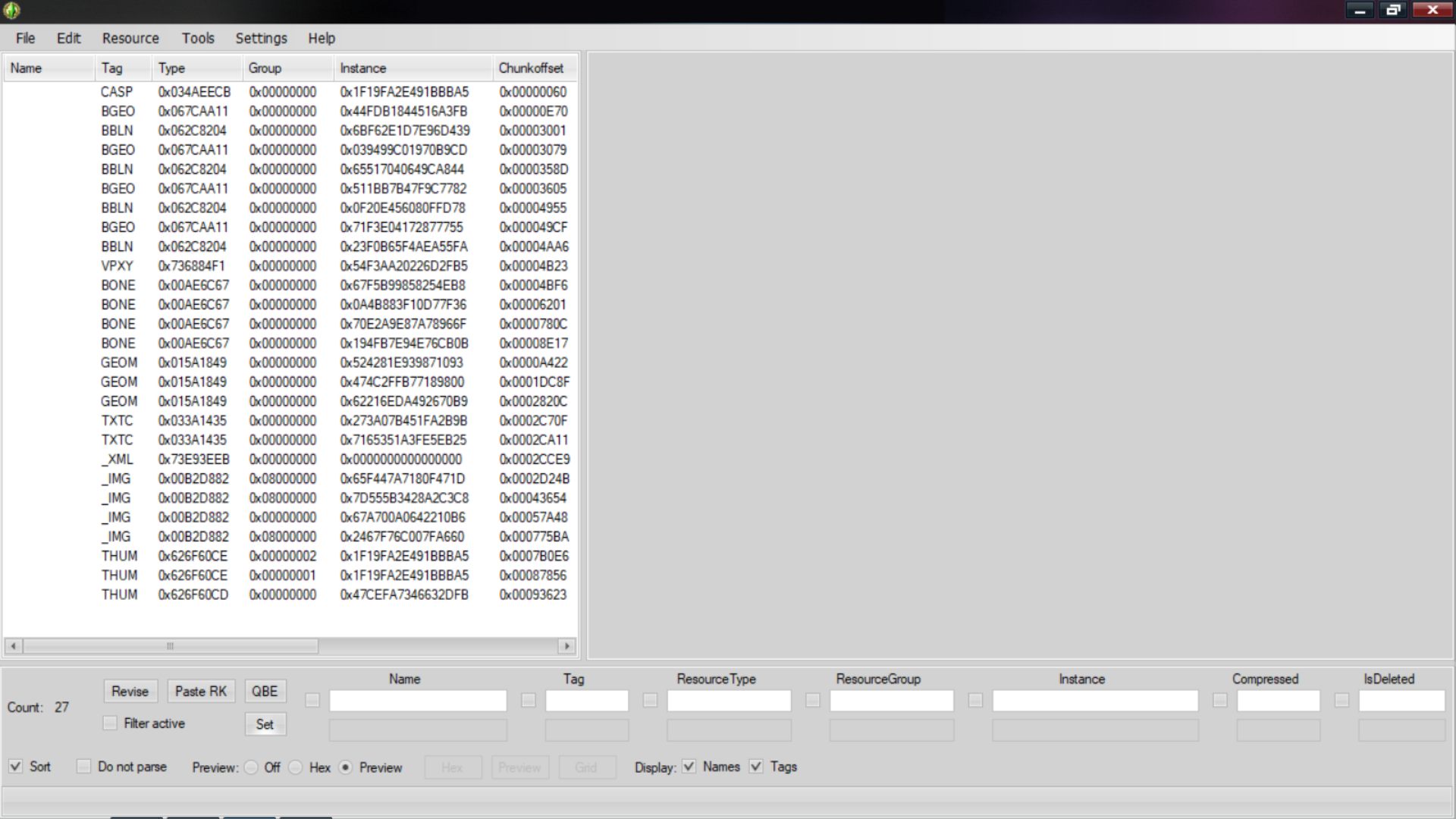
4. To Find it's name - if it has one, will be in the _XML file near the top by where it says package title.
- Search by the tag _XML

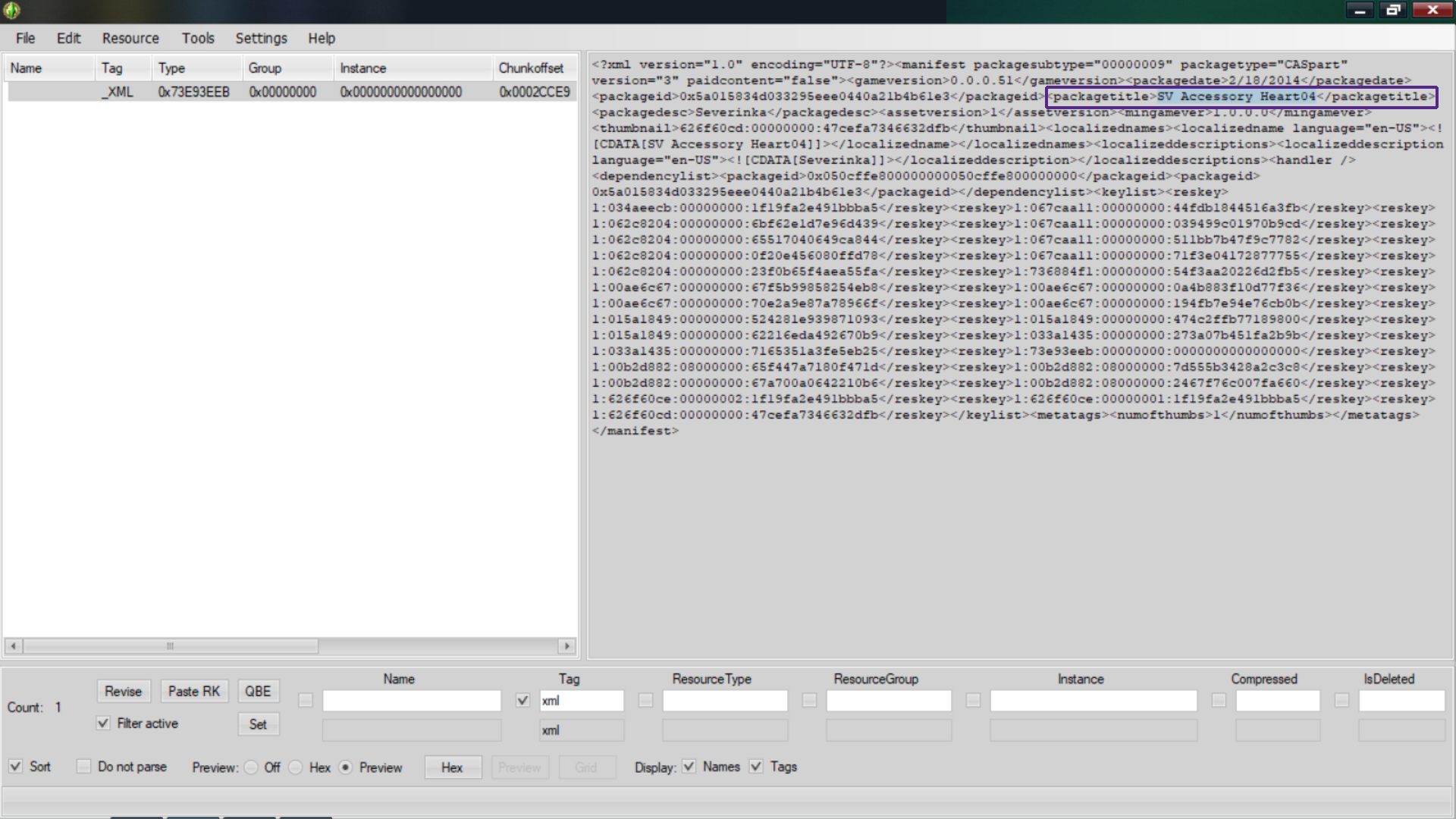
You can highlight the name with your mouse and right-click copy. Or take a quick screenshot and then type out the name. So you can then rename the specific file after you've closed S3PE.
Rename the .package file by right-clicking it and select Rename.
-- Some files don't have _XML files. Like the files in the Sims 3 Library folder. You have to save the lot and/or family as a Sims3Pack file and run them through S3 Pack Multi-Extracter. Learn how
here.
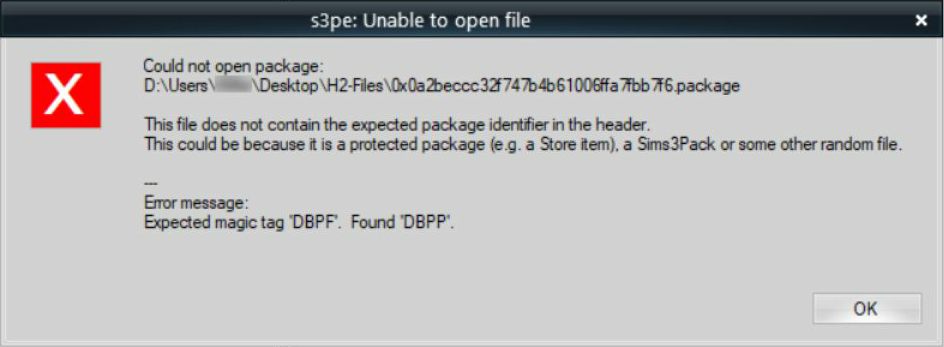
Some package files found the DCBackup cannot be opened with S3PE, as they are protected files.