~ To Use: 1. Open the resulting folder and Double-click - Sims3Dashboard.exe
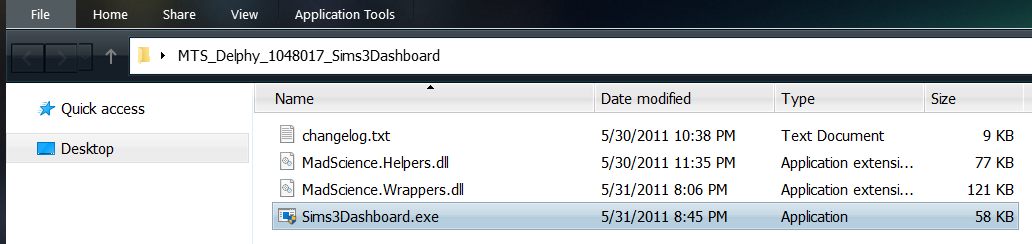
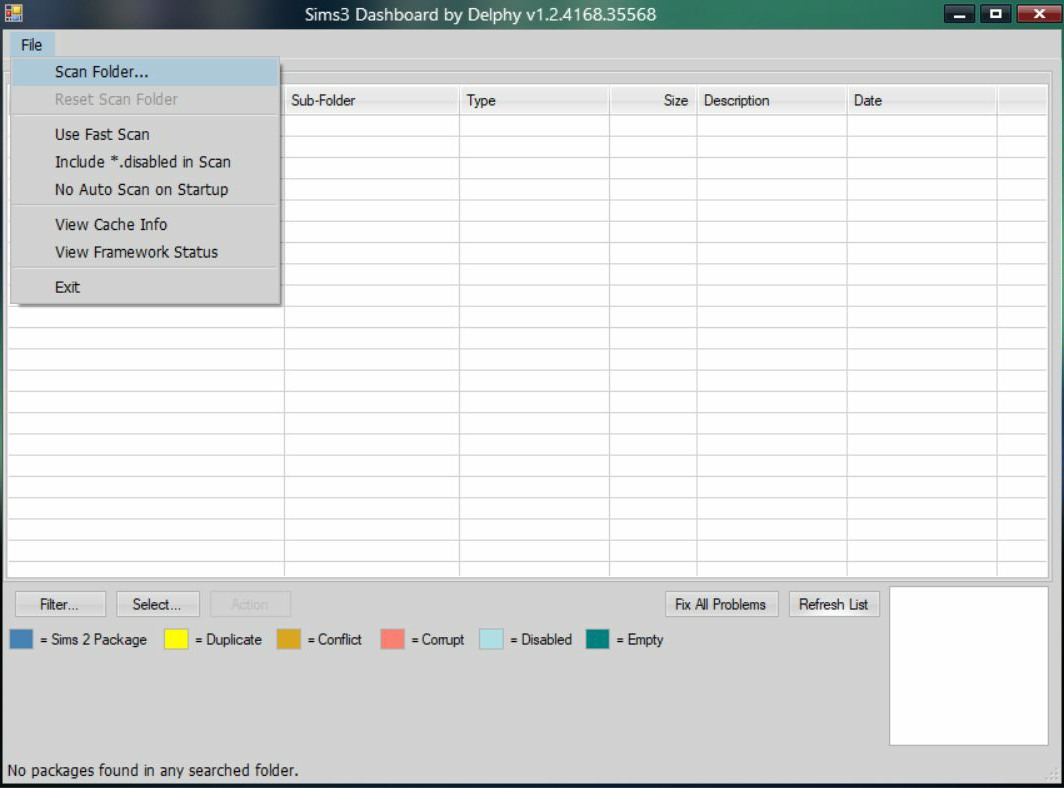
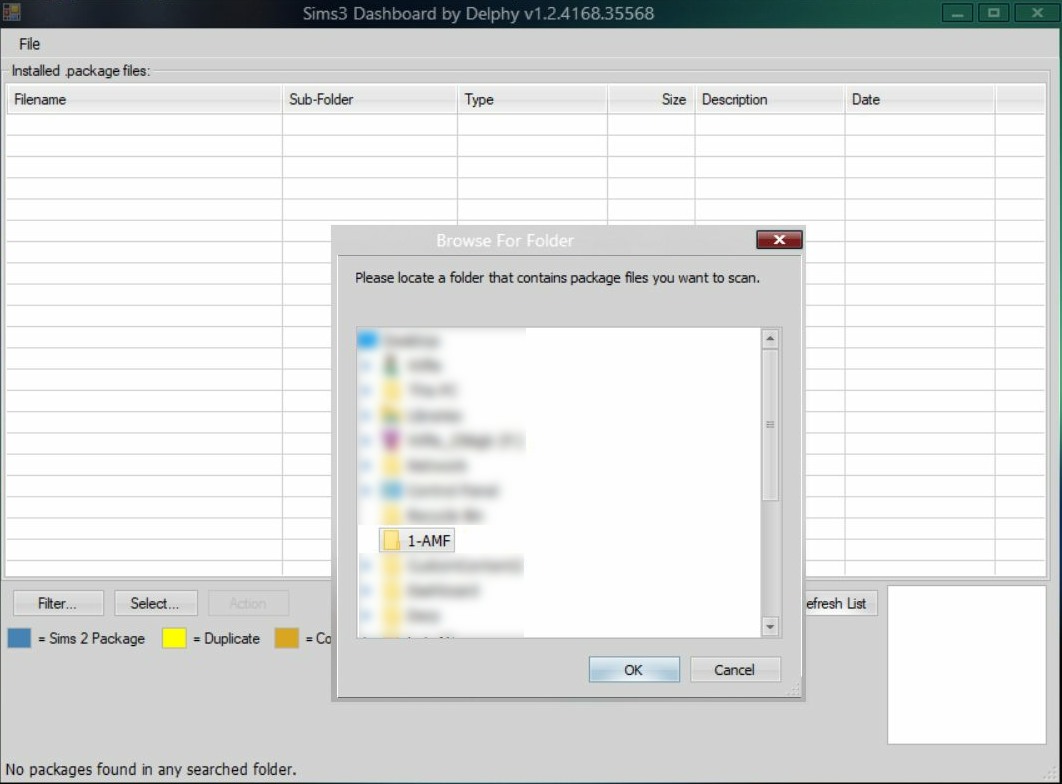
2. Click File > Scan Folder > Browse to Folder (does not work with .Sims3Pack files) and click okay to Open it.
3. It should then show you all the files in the folder you select.
- if there are any Red/Orange colored files, they may need to be removed or tested.
Working with mods > MTS folder:
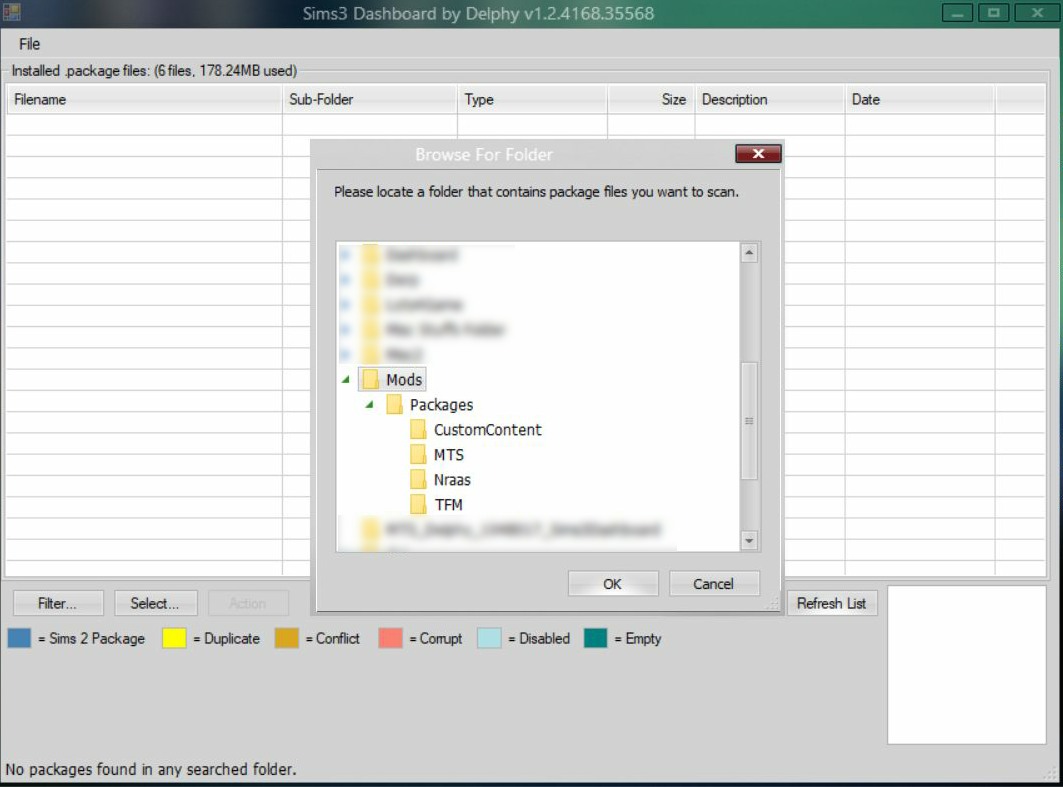
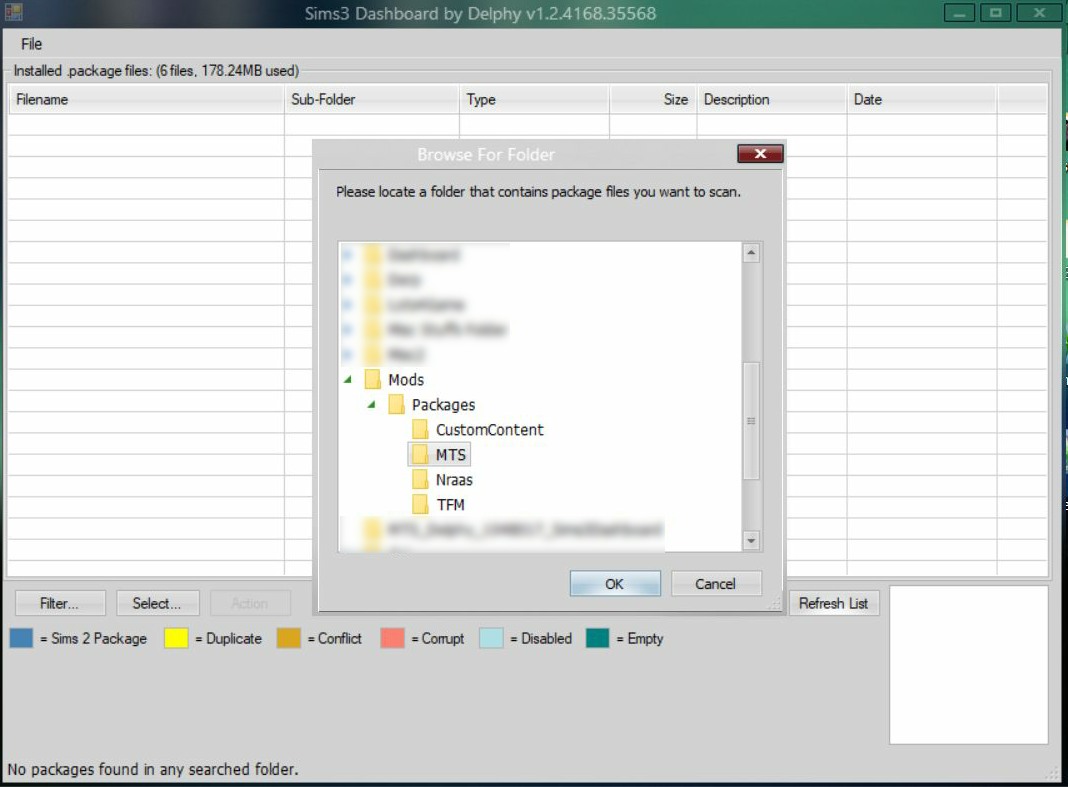
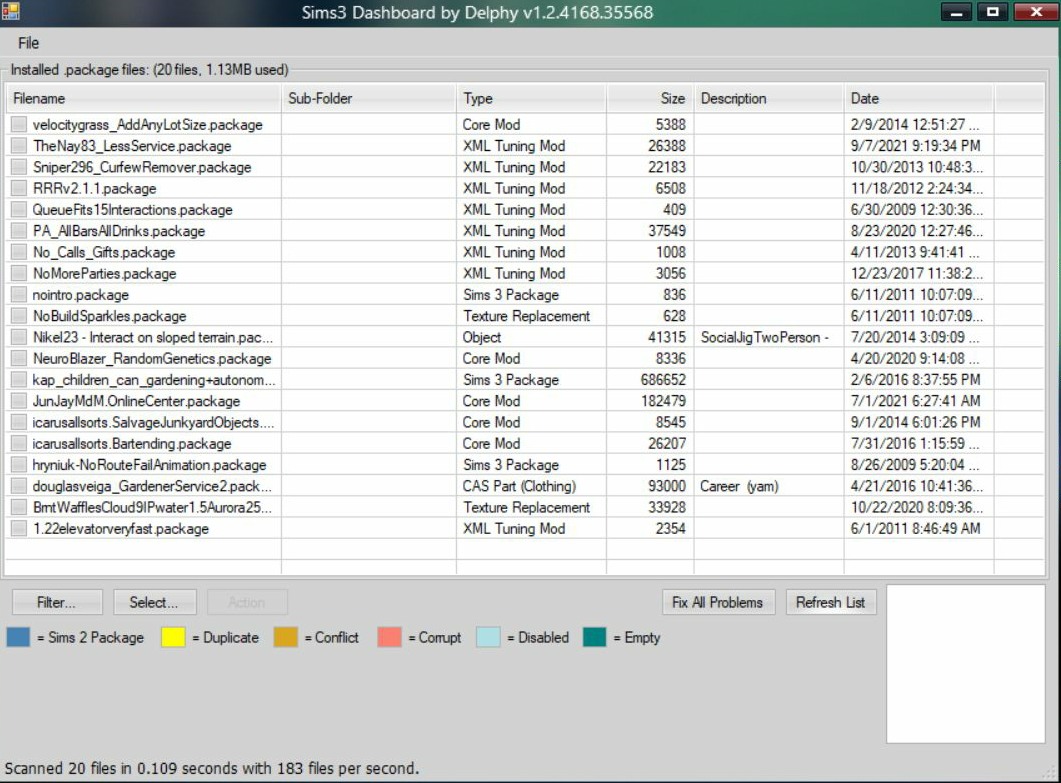
Working with some custom content files:
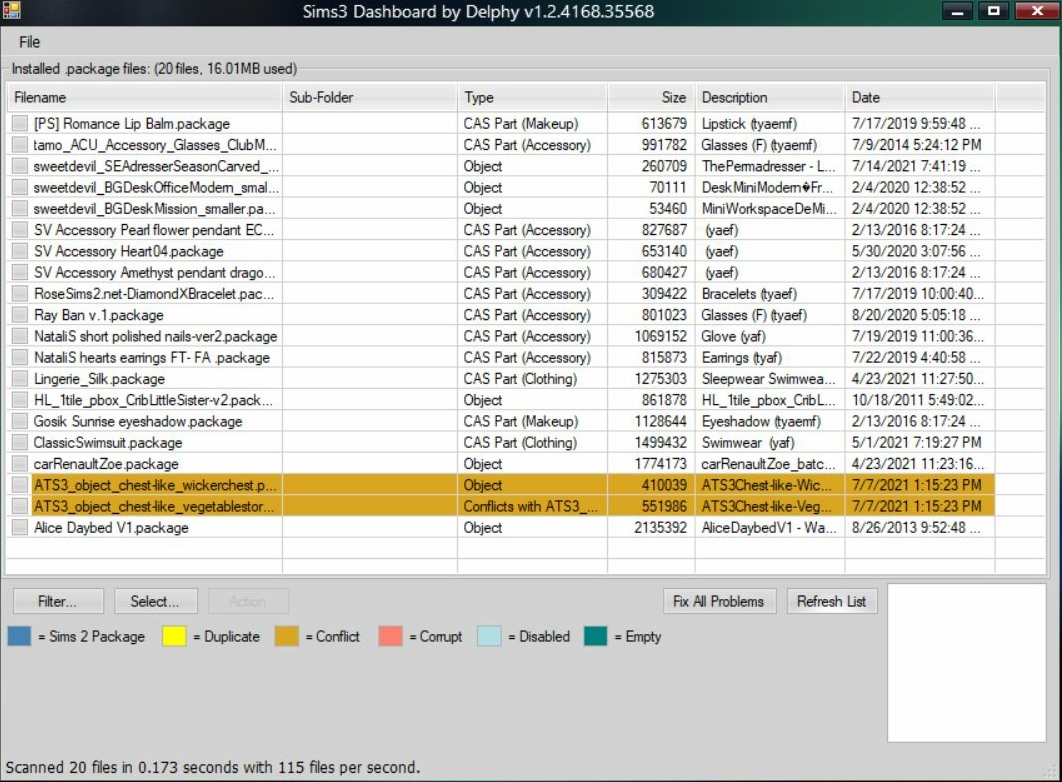
The tool says the files highlighted in Orange conflict, but they don't really conflict as far as I can tell. I have them both placed in my current save and haven't given me any issues. I feel it's a false-positive. This could be due to them having some of the same coding in their file.
If you have something like this, the easiest way I have found to check is to have them both installed and placed in a test save to see if anything happens. If nothing does, then it's safe bet that all is good. Then you can quit the game without saving.
– Testing in a new Sims 3 folder, with a new test save is the best way to test any .Sims3Pack file or .package file. This way you avoid corrupting any save files you have in your main Sims 3 folder.
See
this post, for a How To Create a Sims 3 folder, or to download one.
~ Reference Links:Sims 3 Dashboard Tool aka Delphy’s Dashboard
https://leealeesims3.wordpress.com/2017/11/30/sims-3-dashboard-tool-aka-delphys-dashboard/Delphy’s Dashboard Tool
https://sims3.crinrict.com/en/2011/03/tutorial-delphys-dashboard.htmlUnderstanding Mod and CC Conflicts with Delphy's Dashboard
http://www.simlogical.com/ContentUploadsRemote/uploads/1551/Understanding_Mod_CC_Conflicts_Delphy_Dashboard.pdf

