Note: Making a collection and saving it is best done one collection folder at a time
✽ Click images to see larger view.
~ Making the Collection: 1. Open a save, pick a family or empty lot and go into Build/Buy Mode.
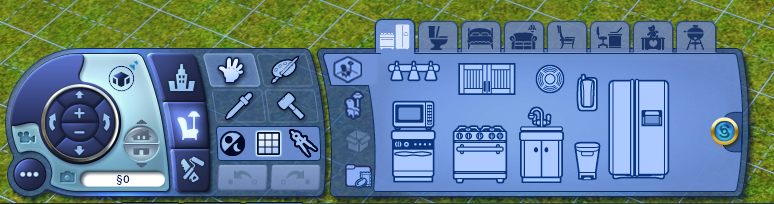
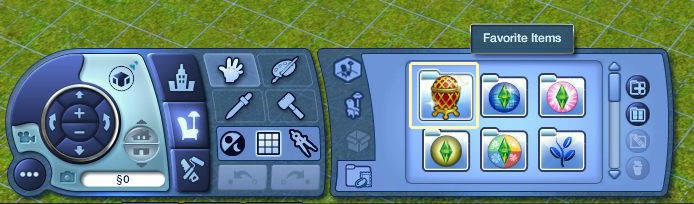
2. Click on the Collections tab > Create New Collection button.
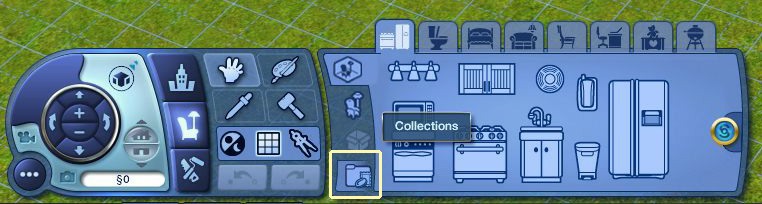
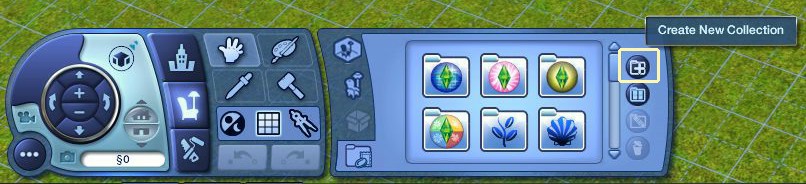
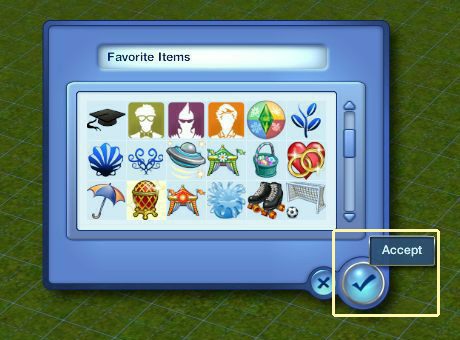
3. Give collection a name and icon. - Find your new collection folder up at the top of the list.
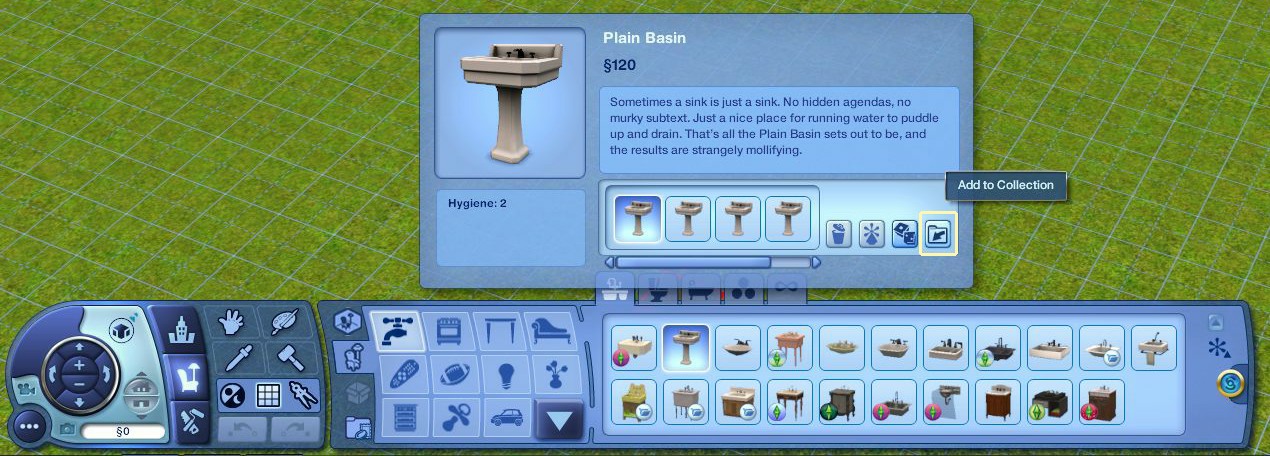
4. Go through the Build/Buy catalog, 1 item at a time and click the Add to collection button. Select your folder to add the item.

-- To view folder - Click on the Collections tab and open your folder, if it's not open already.
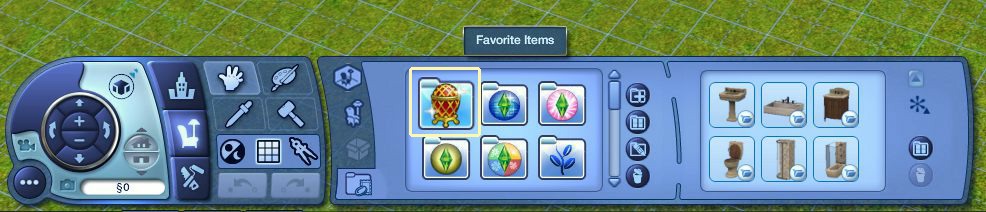
-- To organize contents in folder, click the organize button. Click item and drag/drop where you want it in the list.


~ Saving the Collection Files: 1. Go to Documents/Electronic Arts/The Sims 3/Collections/User
Click on the word Date to sort by Date Modified.
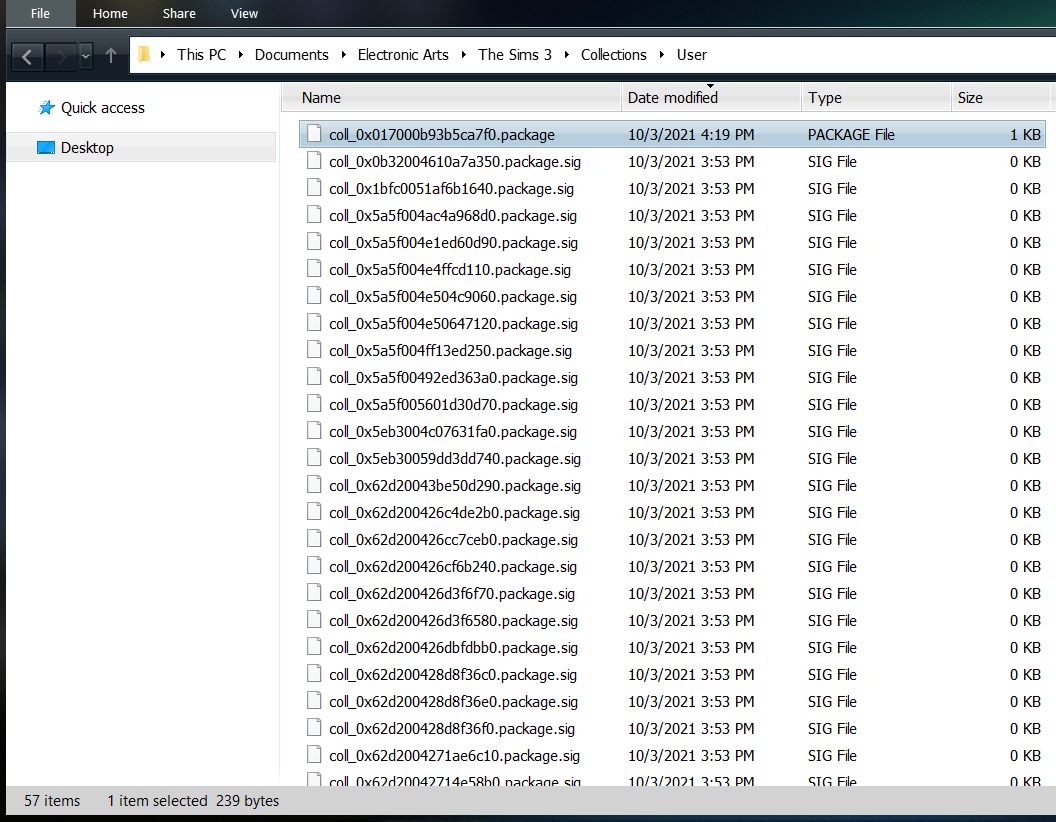
2. Rename the package file to match the collection you just made. (Favorite Items)
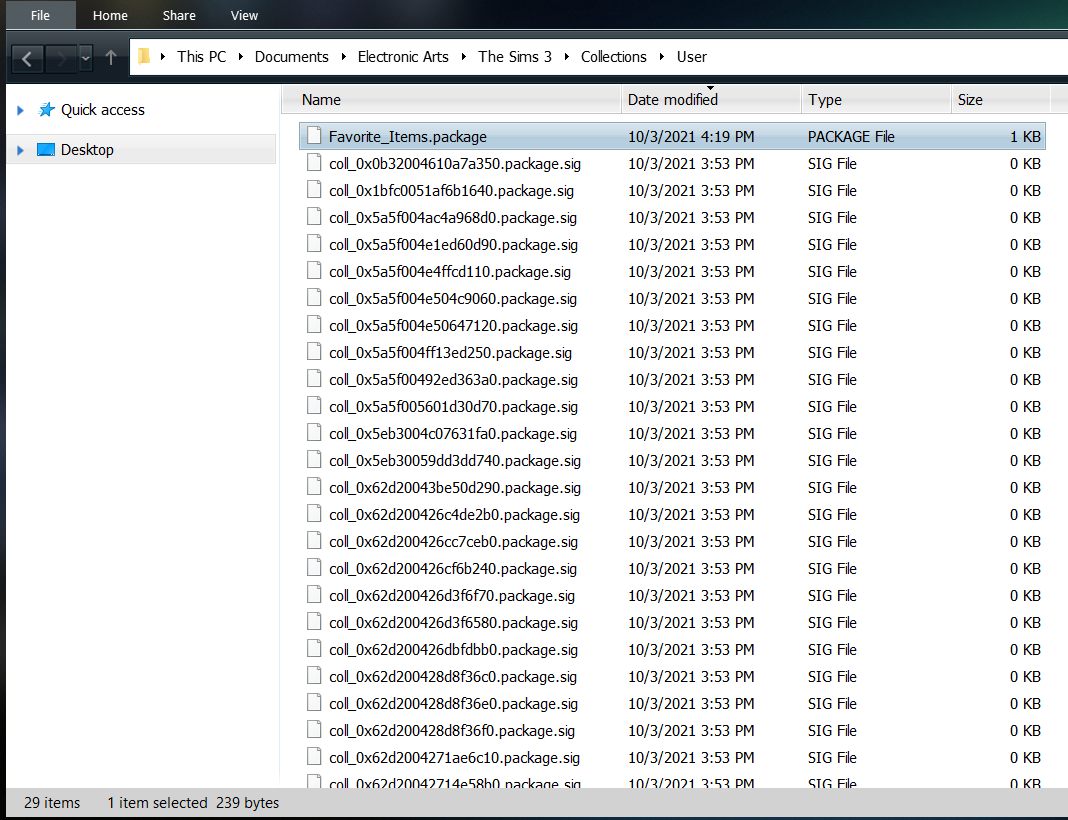
3. Back up the Collections folder. It's recommended to back up this folder each time you make a new collection.
-- Note: Exit the game after making each collection, or it will not work correctly. You don't have to save the game. You just have to exit.
And you have to make the collection in one step, don't forget anything because if you make a "revision" to your collection later, you will have two .package files now.

