How to Add Images to a Post ~ via Imgbb, Post Image and Others – Quick Link Index: –-
Imgbb Mod –-
Imgbb Website –-
Postimage –-
Imgur –-
Flickr –-
Photobucket –-
Share a Direct Link for an Image
✽ – Rules for Photos: – Images need to be in jpg. format and no bigger than 800 wide.
– Images need to be hosted on an image hosting site such as
Imgur ;
ImgBB ;
PostImage and linked from the image site.
– Limit 12 photos per post (at most) to prevent overwhelming the forum's display engine. Create new post, if you want to add more photos to your thread.
– See
this this post for example of photo limit per post.
✽ See
this post for Troubleshooting Trying To Post an Image:
✽ Check
this site to see if the image site is down. [https://www.isitdownrightnow.com/]
–- Click on images to see larger view.
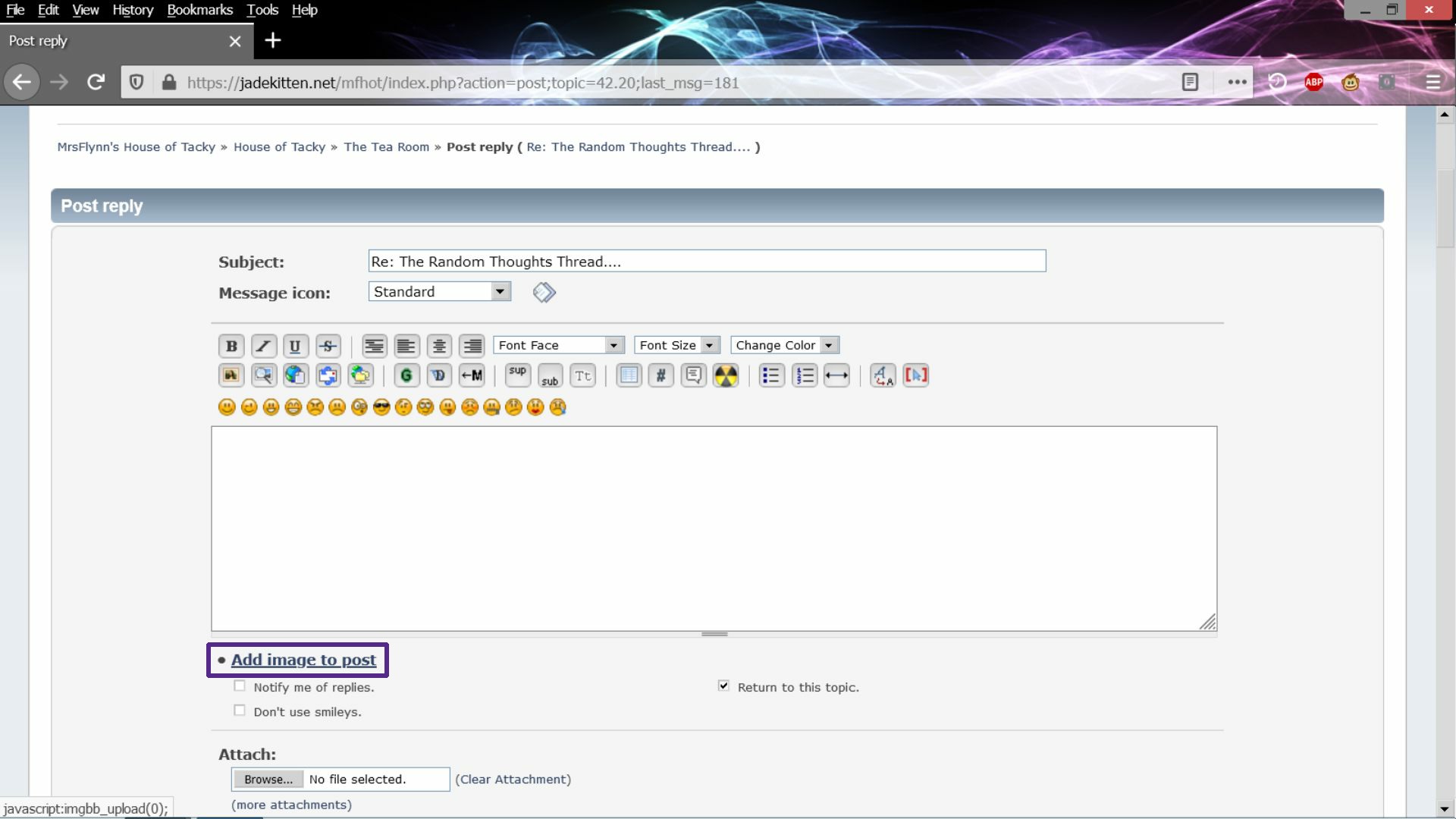
~ Using the Imgbb Mod: ⦿1. Click the Add image to post under the message box to the left.
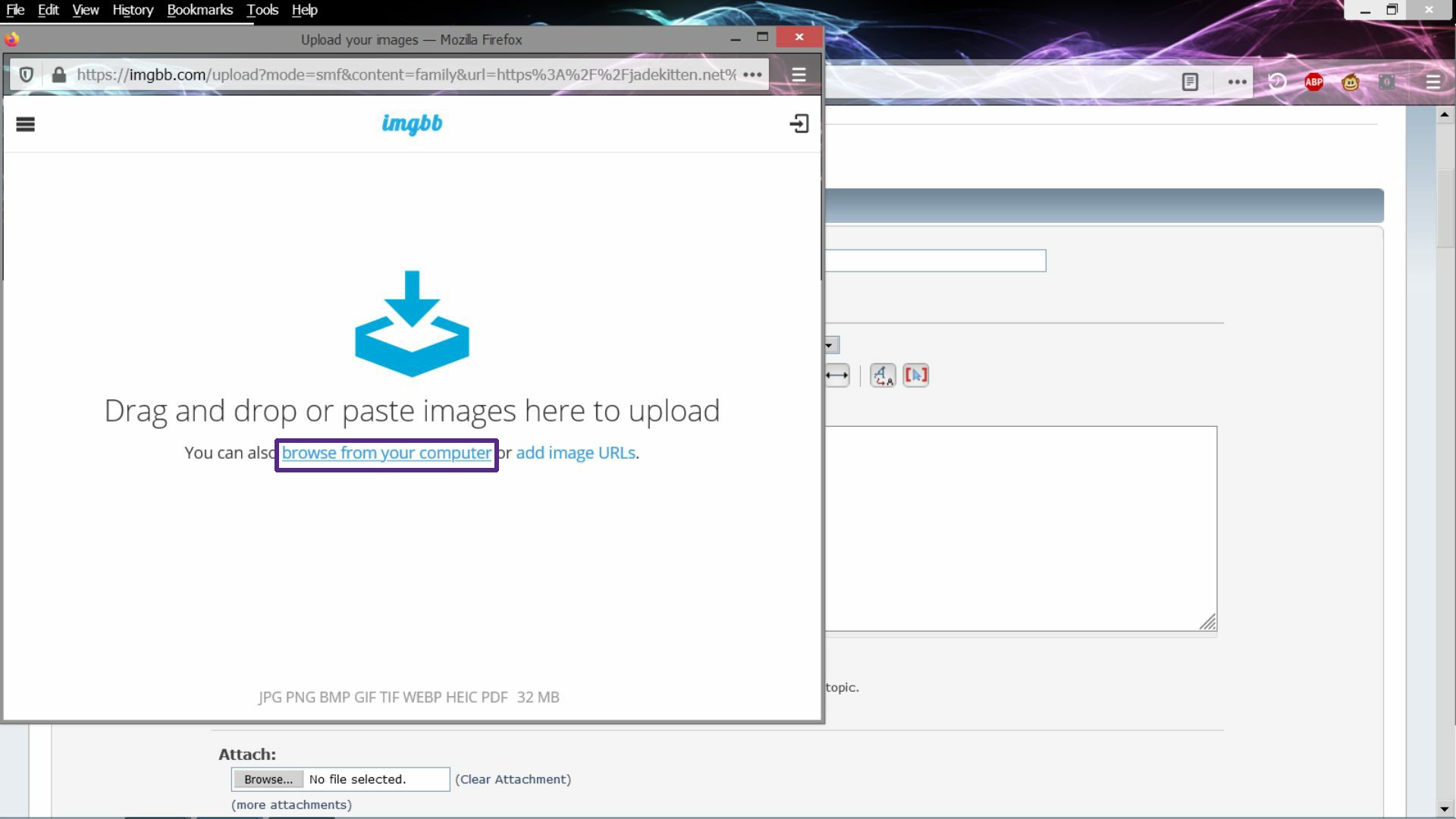
2. Click Browse from your computer
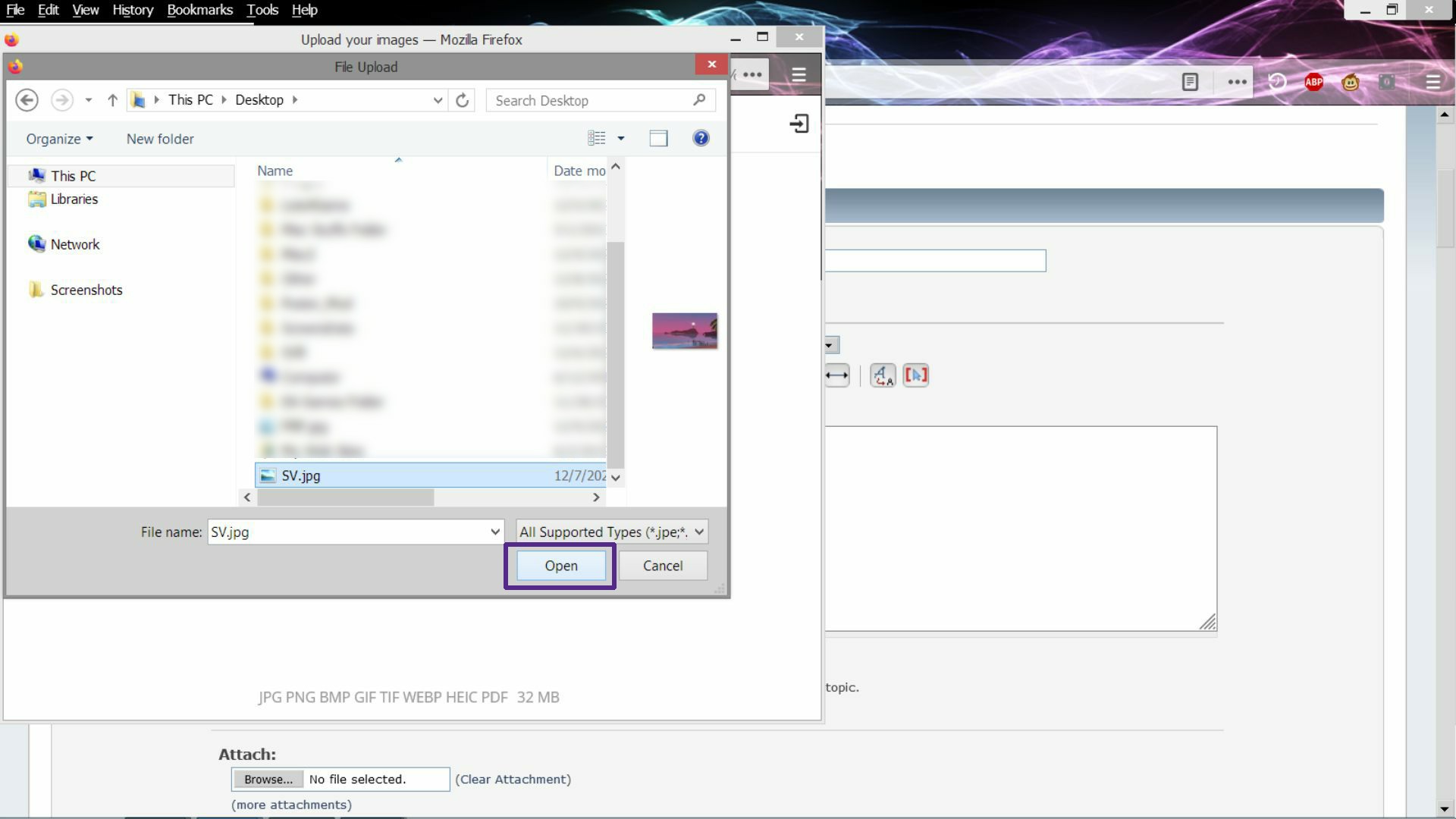
3. Navigate to where your photos are located and click on your images you want to add, while pressing the Ctrl key to add multiple images. Then click open when finished.
 ✽ It does seem like imgbb has a photo upload limit of 50 images or under per hour.
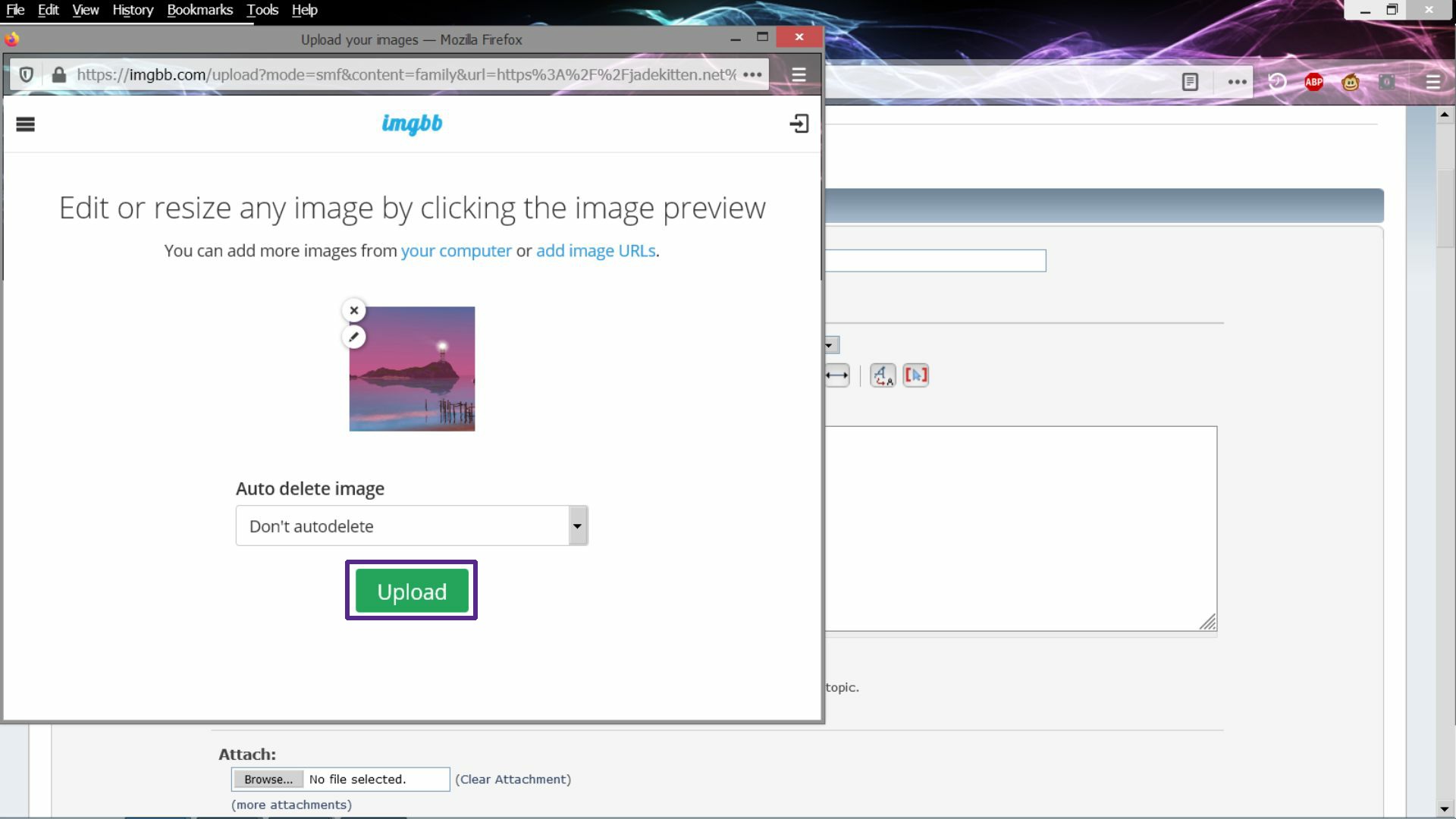
You can edit or resize image if desired and can choose a time to auto delete your photos. They have various choices. Then click the Upload button.
-- An image link with bbcode will pop into the message box.
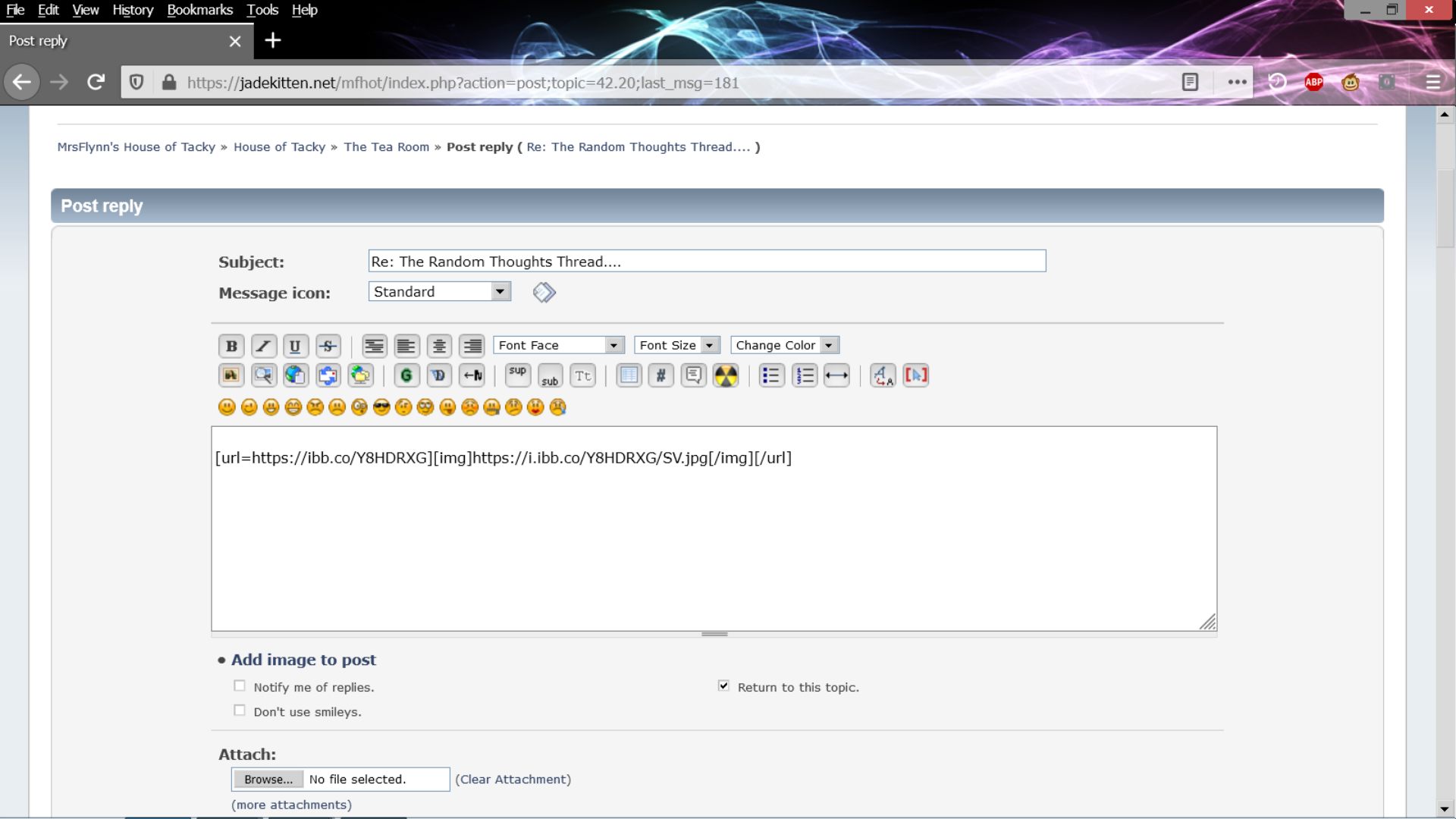
** The image mod automatically resizes the images into thumbnails in the size of width = 180W by 180H. You can change the size by modifying your message after the photo links have been added and you first post the message. Click the word Modify up to the right of the subject line and manually edit the width and height of the photos.
Warning... The bigger you make the thumbnails the blurrier they get.
-- After being posted:
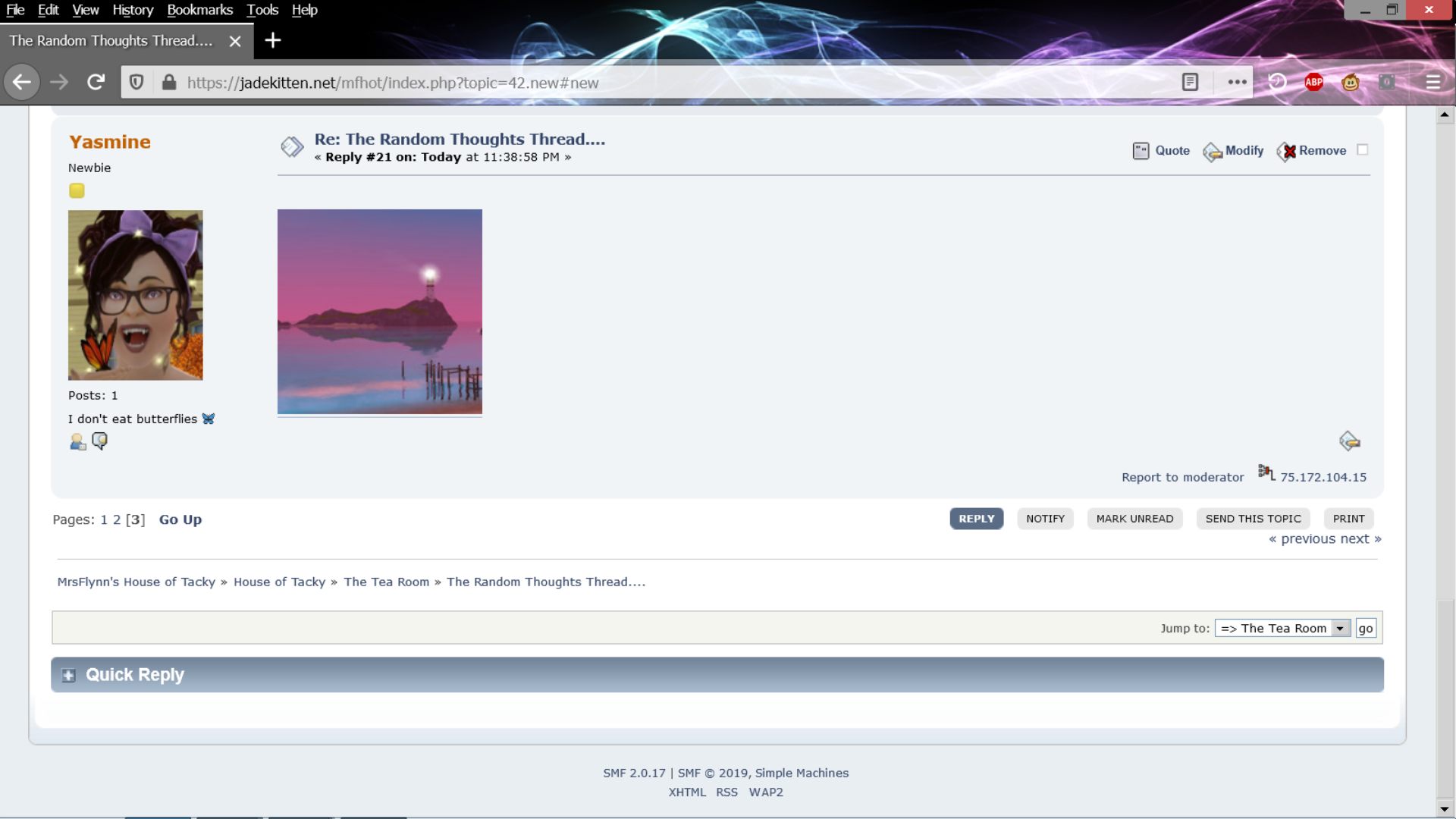
** It is suggested to upload only one photo at a time, or you may get a jumbled mess of images links.
Example - wall of bbcode. Yikies!!
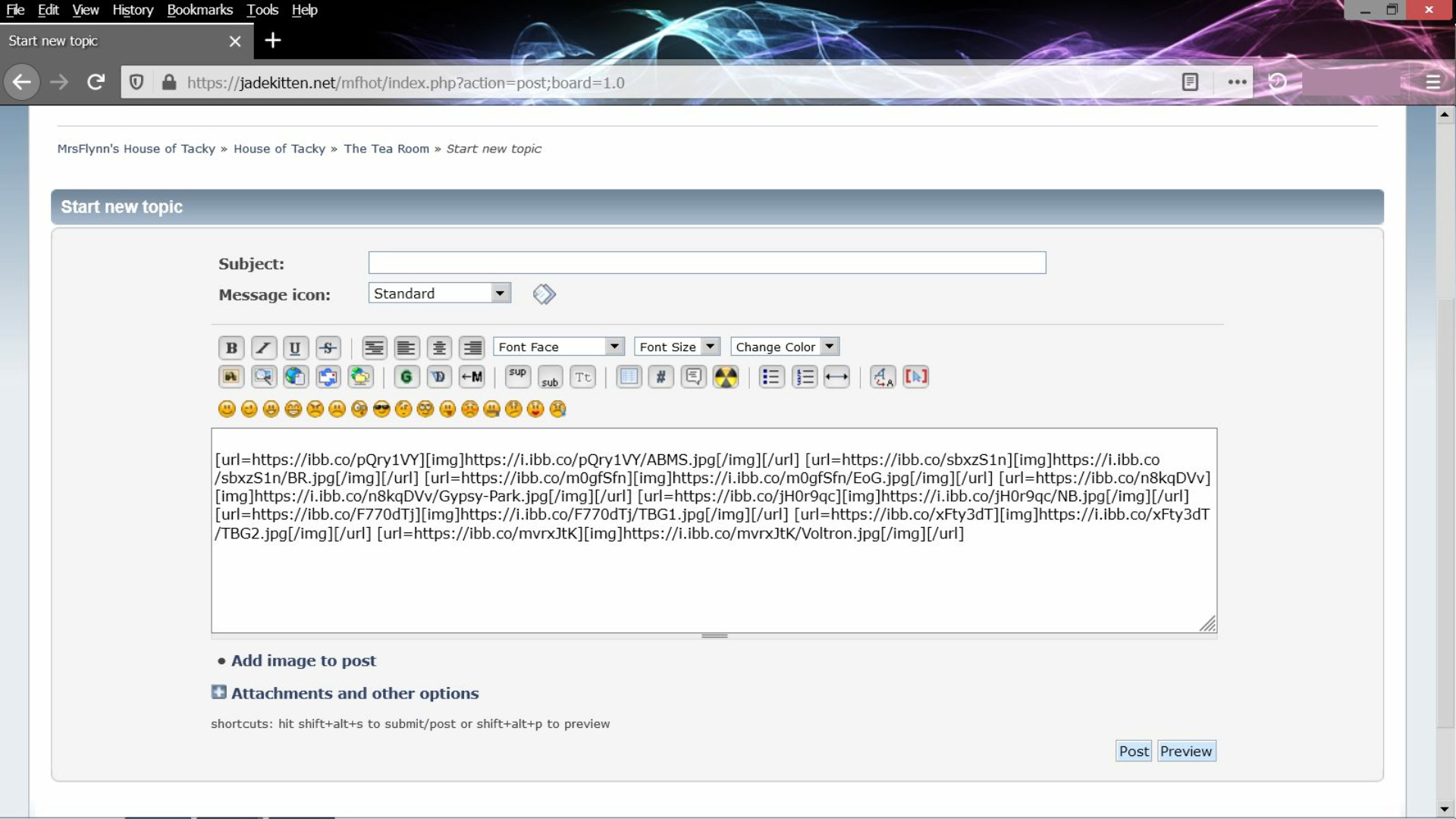
-- However, you can edit/modify your post to separate the links -- look closely for the spaces between the links.
----
~ Using the Imgbb Website: ⦿How to Upload Photos via Website:
1. Click the Blue Start Uploading Button.
2. Navigate to where your photos are stored.
If single - Click on image and then Open.
If multiple - Click on your first image then shift-click on your last photo and click Open.
3. Once uploaded, from the drop down Embed Codes list, choose BBCode thumbnail linked.
4. Copy the link (s) shared to a message.
Post Image: ⦿https://postimages.org/ - Post Image FAQ -
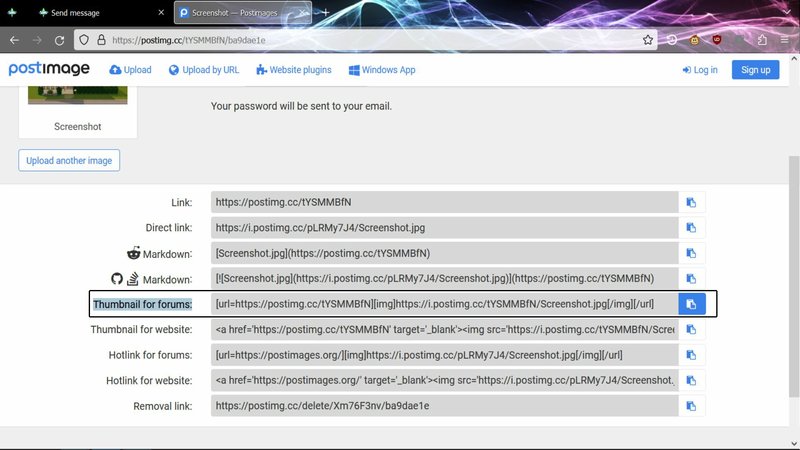
https://postimages.org/faq–- How to Upload a Single Photo:1. Click Choose Images and navigate to where your photos are stored.
2. Copy the Thumbnails for forums. Using the Copy button to the right, or highlight the link and copy/paste into a new message.
–- ༺✽༻ -– ༺🦋༻ –- ༺✽༻ -–
–- How to Upload Multiple Photos:1. Click Choose Images and navigate to where your photos are stored.
2. Click on your first image then shift-click on your last photo and click Open.
3. Choose either Link to this gallery or Codes for all images and choose Thumbnail for Forums.
4. Highlight all the links and copy/paste them to your message. (Left-click and drag mouse over links.)
Click image to see larger view -
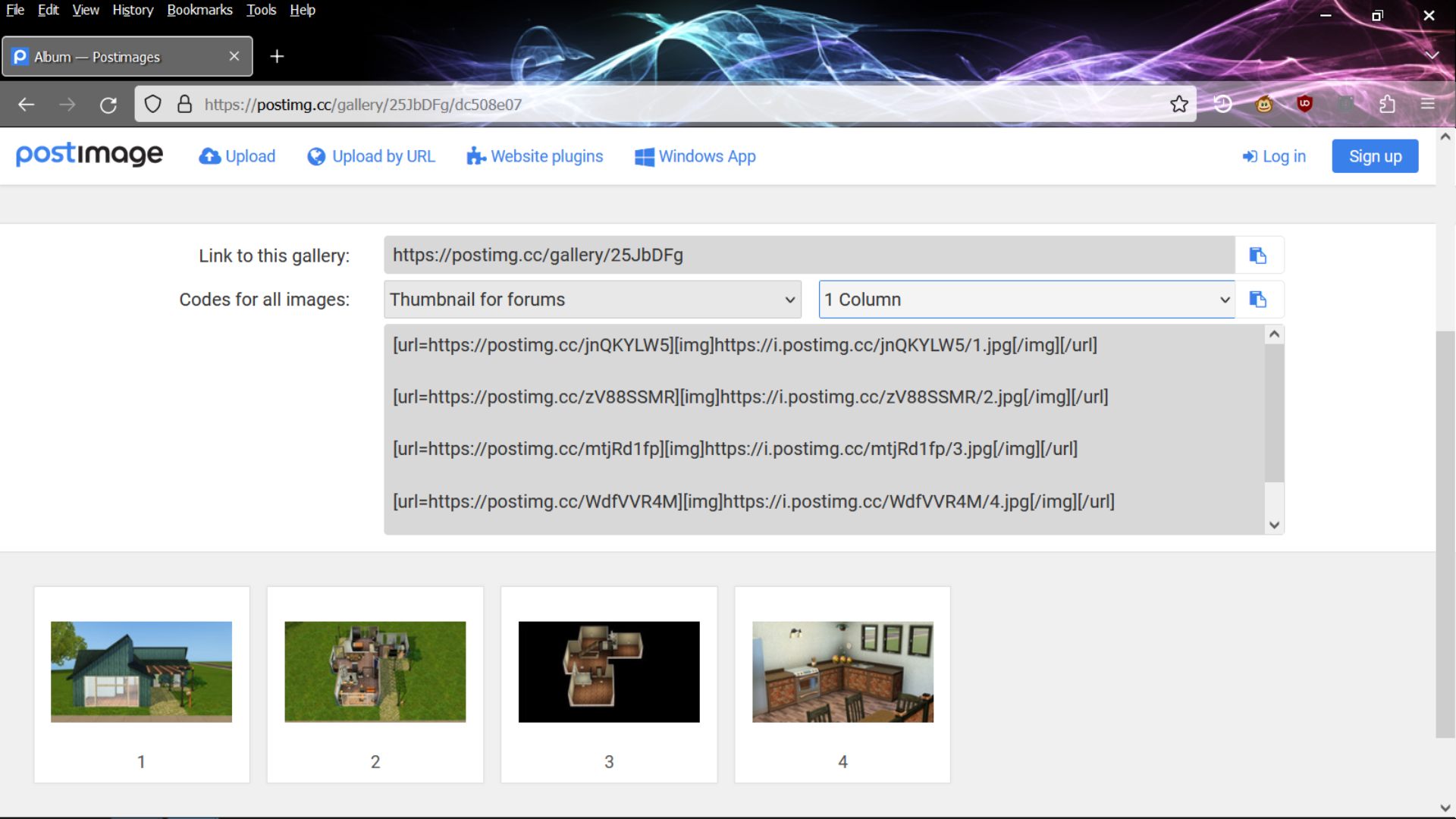
On the image links page, you can also delete any images you don't want. Mouse over them to see the trash can.
----
Imgur: ⦿How-To Use Imgur and Share Photos in the Forum
https://www.carls-sims-4-guide.com/forum/index.php?topic=30847.msg492876#msg492876 -----
Flickr: ⦿Flickr: Sharing Images
https://help.flickr.com/en_us/share-or-embed-flickr-photos-or-albums-rJBx6mjyXCopy the BBCode
Click a photo to open it.
Click the Share icon.
Click BBCode.
Pick the size you want to display.
Copy the code and use it on your website.
-----
Photobucket: ⦿Photobucket - How Do I Share My Images
https://support.photobucket.com/hc/en-us/articles/360011979513To copy your image link code, click Copy.
Go with either the the IMG or IMG thumb
-----
–- How do I get a link or URL for an image?: ⦿Right-click the image and in your browser select the following depending on your browser:
Chrome: Copy image address.
FireFox: Copy Image Link.
Microsoft Edge: Click Copy link
Internet Explorer: Click Properties, select the URL to the right of the "Address" heading, and press Ctrl+C.
Safari: Click Copy image address
Example Shown From FireFox:


