~ Details About This Program: ✽ Click images to see larger viewThis program allows you to bulk extract .Sims3pack files into a folder. The process can be done on your desktop and can be done all in one folder.
The .Sims3Pack files needs to be in a folder in order for the program to find them and extract them.
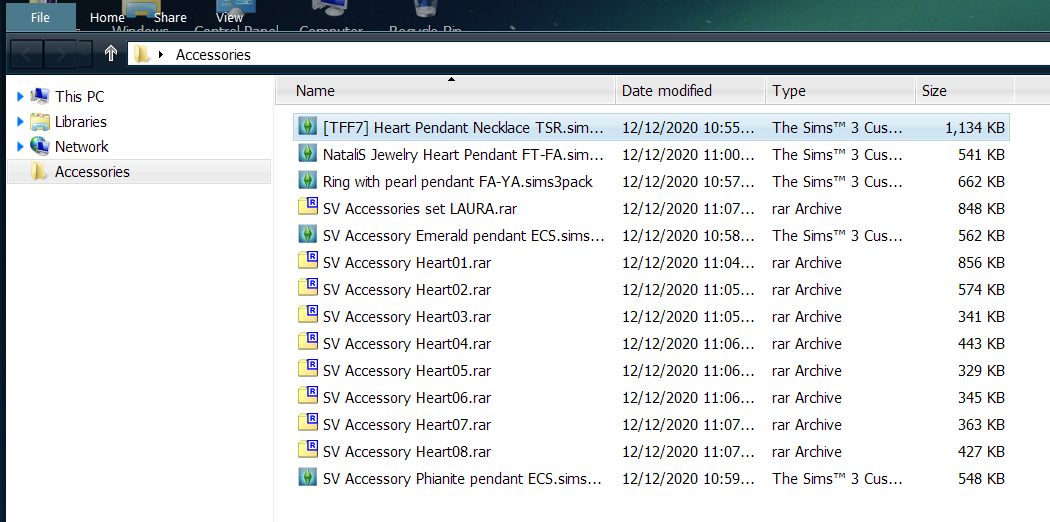
If you have downloaded any zipped files, they will need to be extracted or unzipped first. As the Sims3Pack Multi Installer program can only see .Sims3Pack files.
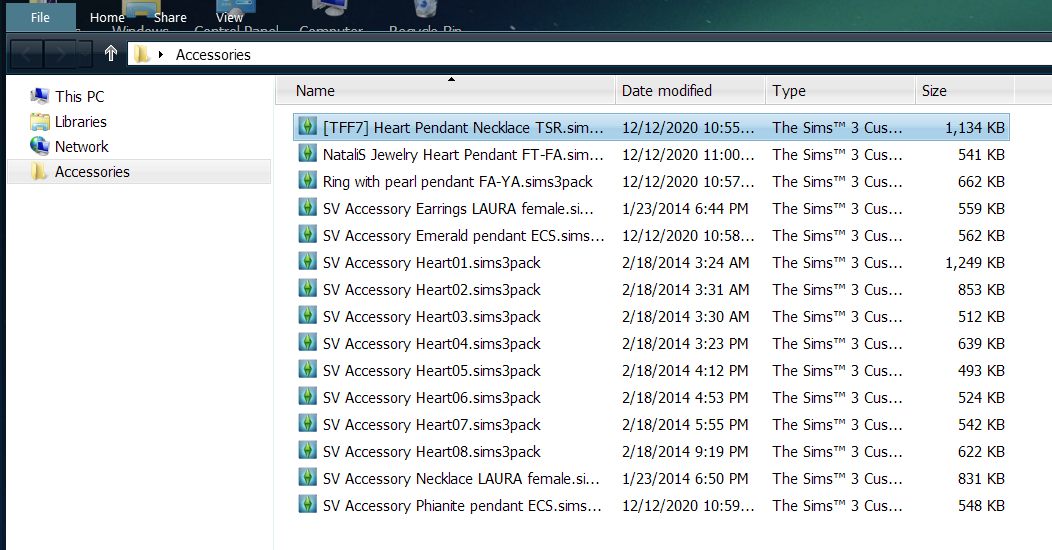
** Please note, this is not a replacement for the Launcher. It does not give the extracted .package files a custom content icon. It's meant to extract or unpack .Sims3Pack files so you can put them in your Mods > Packages folder or another sub-folder.
The actual program hasn't been updated since 2009, but it still works and runs fine. It shouldn't cause any issues in extracting your .Sims3pack files.
If you have any questions regarding this program, I will do my best to answer. I have only used this program to what I call unzip or extract files. I think that's all it really does. lol
There is a support thread over at MTS ~
http://modthesims.info/download.php?t=364038&c=1&goto=newpostIt's been said that you need .NET Framework 2.0. to run the program. However, most modern PCs should have a newer version installed. So all is good there!!
~ To Download and Open the Program:Click on the file download link, save it to the desktop and extract it there. For .rar files, I use a program called 7zip to unzip/extract the file.
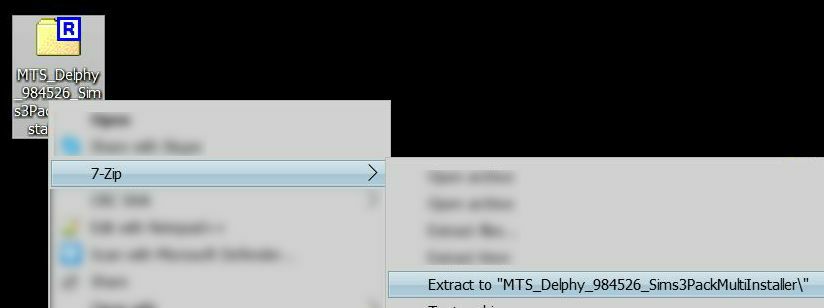
Open the resulting folder - for ease of use, I cut and pasted the .exe file to my desktop. -- Double-click the program to open it.
~ How to Use the Program: 1. Create a new folder on your desktop to download or copy your custom content into. [In my example, I created a folder called Accessories.]
-- Create a new folder by right-clicking the desktop > Select New > Folder (give it a name)
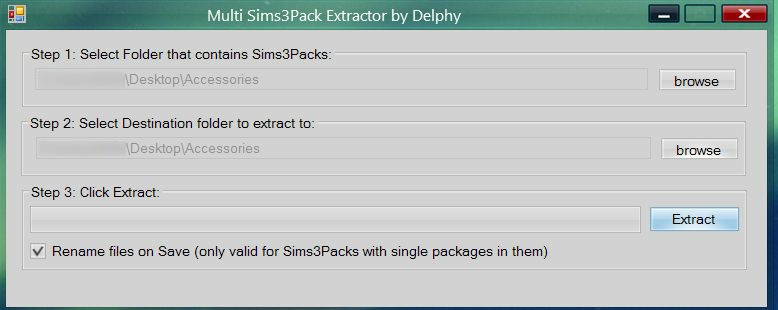
2. Run the Sims3Pack Multi Installer, by double-clicking on it.
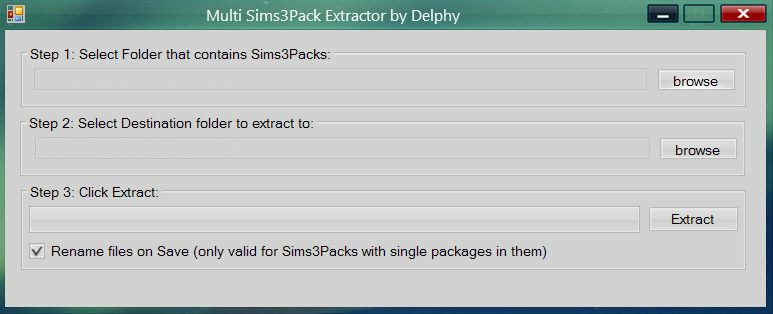
-- In Step 1, select (Browse to) the folder that contains the .Sims3Pack files.
-- In Step 2, select (Browse to) the destination folder to extract the file to. - This can be the same folder as above.
-- Step 3, click the Extract button to the right. If you have Rename files on Save check marked. It will give the same name as what the .Sims3Pack file has.
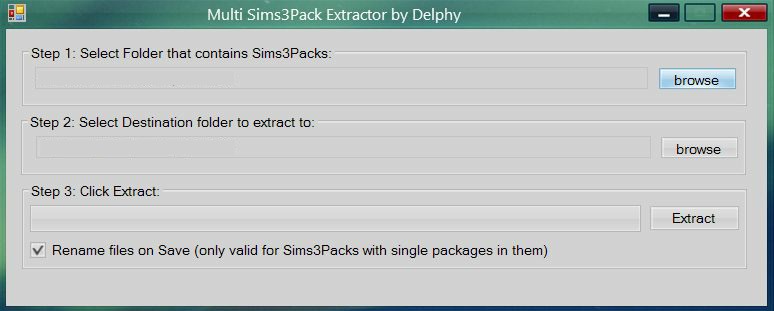
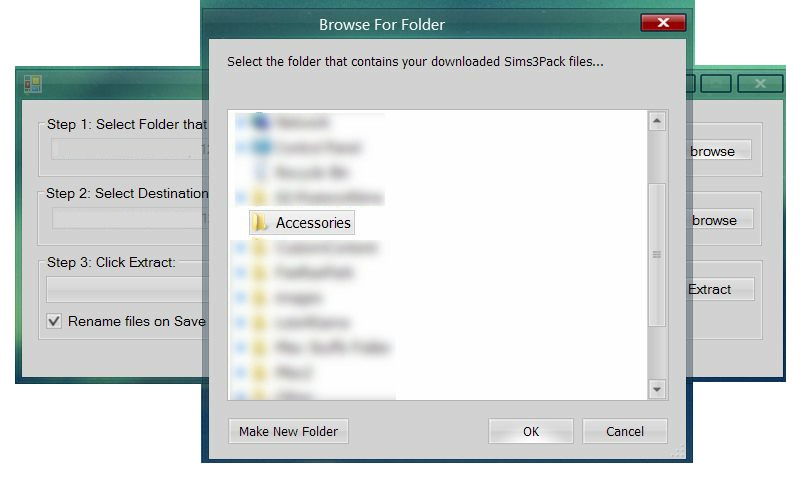
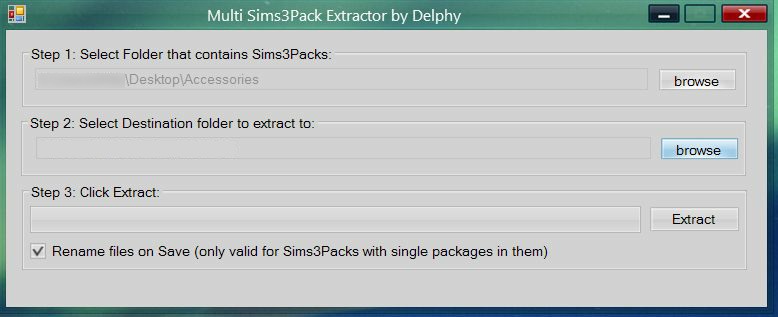
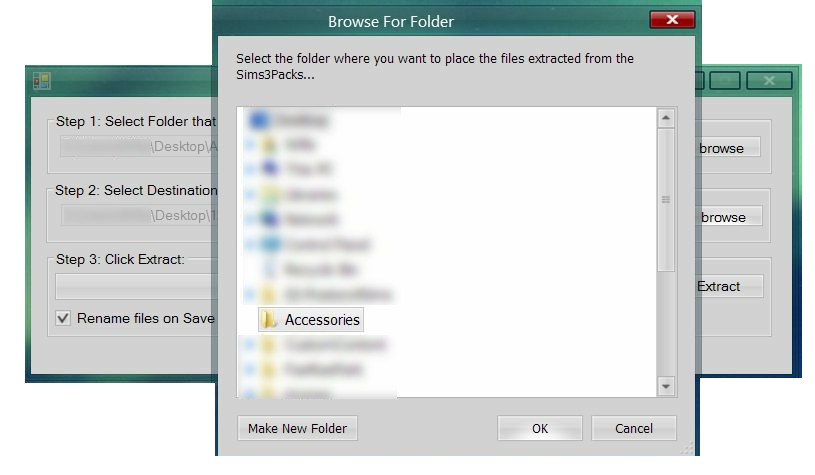
-- After it's finished, you can close out the program. Open your folder to find both the .Sims3Pack files along with the .package files.
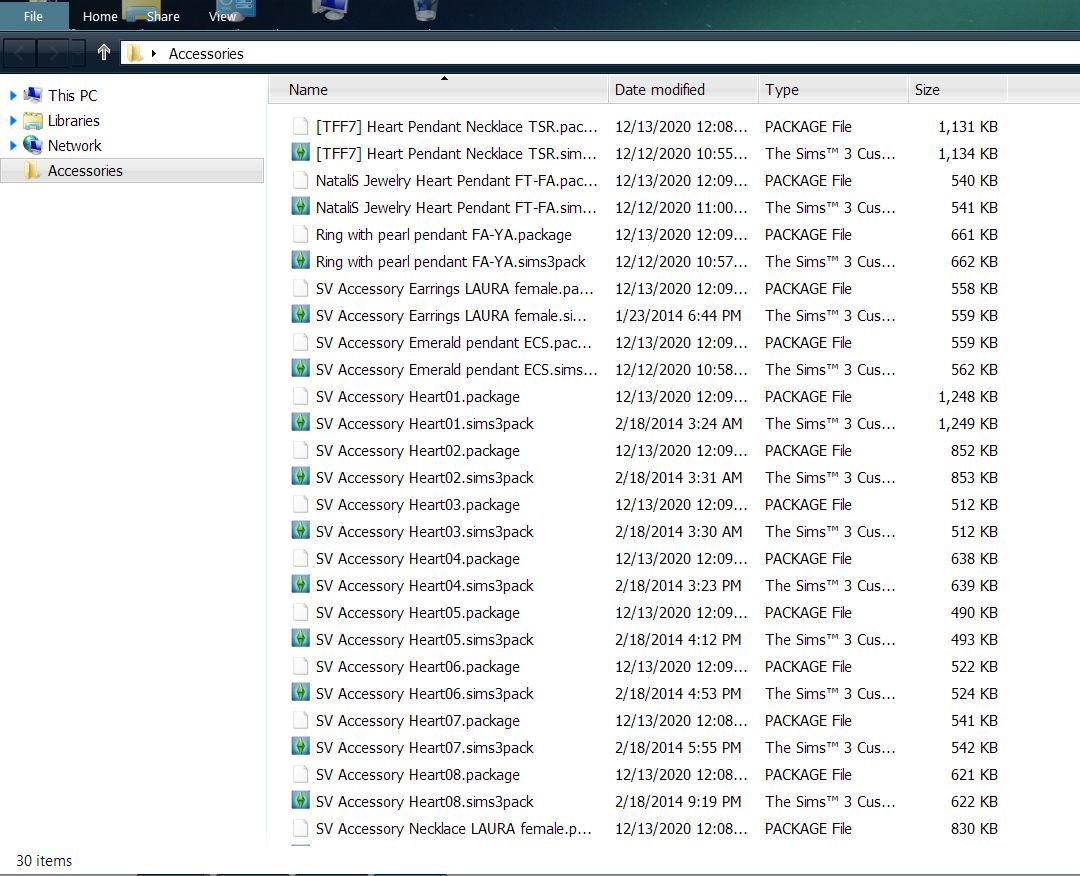
3. Add the package files to your mods folder. Depending on how you have your mods folder setup.
\Documents\Electronic Arts\The Sims 3\Mods\Packages
Below in the reference section I am sharing links to where I learned about converting files, how I have my mods folder setup and how to merge custom content. As there are a lot of players that like to merge their cc files after converting them to .package files.
-----
~ Reference Links: ➤
Convert Sims3Packs to Packages ➤
A How-To by LeeAlee's Sims 3 ➤
MrsFlynn's Mods Folder Setup ➤
How to Merge Custom Content (Basics) ➤
How To: Look at Library and CC Files via S3PE (Basics) ➤
Saving Sims 3 Files and Sharing Via the Library Folder

